YouTube Auto HD from 144p to Ultra HD 8K
Force every video to play at the highest quality: automatically
You want razor-sharp video, but YouTube picks the quality itself, and often not the best one. YouTube Auto HD in the free Turn Off the Lights browser extension ends that: it detects the highest resolution each video offers and forces the player to use it, from 720p and 1080p all the way up to 4K and 8K Ultra HD.

Your quality, your choice
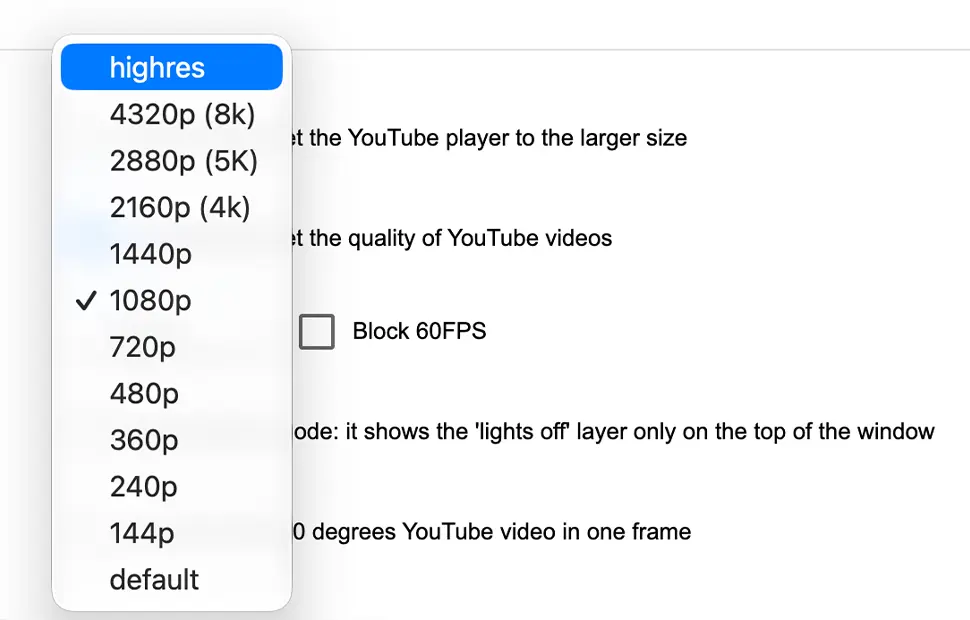
In the options page you pick the resolution the extension should force: default, 144p, 240p, 360p, 480p, 720p, 1080p, 1440p, 2160p (4K), 2880p (5K), 4320p (8K) or highres, which always selects the maximum quality that specific video offers. If a video tops out at 720p, it plays at the best 720p available; if it offers 4K, you get 4K.
Full 60FPS support
For gameplay, sports and action footage, frame rate matters as much as resolution. When a video offers 1080p60 or 720p60, Auto HD selects the highest frame rate too, so fast motion plays smoothly without you opening the quality menu on every video.
There is also an option to block 60FPS videos, allowing you to limit YouTube playback to 30FPS. This can be useful if you prefer smoother browser performance, want to reduce GPU usage, or simply do not need high-frame-rate video playback. With this option enabled, you can enjoy 1080p 30FPS videos in your web browser instead of streaming higher-frame-rate content.
How to enable YouTube Auto HD
- Install the free Turn Off the Lights extension for Chrome, Firefox, Edge, Opera, Safari or your favorite browser.
- Right-click the gray lamp button, choose Options, and scroll down to the YouTube section.
- Enable Automatically set the quality of YouTube videos and pick your preferred resolution.
Frequently asked questions
How do I force YouTube to always play in HD or 4K?
Install the free Turn Off the Lights extension and enable the Auto HD option. Choose your preferred quality, 720p, 1080p, 1440p, 4K, 8K or highres, and every YouTube video automatically plays at the highest available setting.
What does the highres option do?
Highres tells the extension to always select the maximum resolution the video offers, so a 4K video plays in 4K and an 8K video plays in 8K without you touching the quality menu.
Does Auto HD support 60fps videos?
Yes. When a video offers 1080p60 or 720p60, the extension selects the highest frame rate too, so gameplay and sports videos play smoothly at 60 frames per second.
Is the Auto HD feature free?
Yes. It is included in the free and Open-Source Turn Off the Lights browser extension on Chrome, Firefox, Edge, Opera, Safari and other supported browsers.
Sharp video on every play, combine it with YouTube AutoWide for the biggest, clearest picture. Download Turn Off the Lights today.