Zoom, Rotate, and Move Any HTML5 Video, Including YouTube
Magnify, rotate, and reposition the video content itself — and keep it sharp in full screen
Video zoom means enlarging or shrinking the picture inside a video player, so you can magnify a detail, crop out black bars, or fit the frame to your screen. No video site offers this control by default. The free Turn Off the Lights browser extension adds a Zoom panel to every HTML5 video player, so you can zoom in and out on YouTube, Vimeo, Dailymotion, Facebook, news sites, and learning platforms.
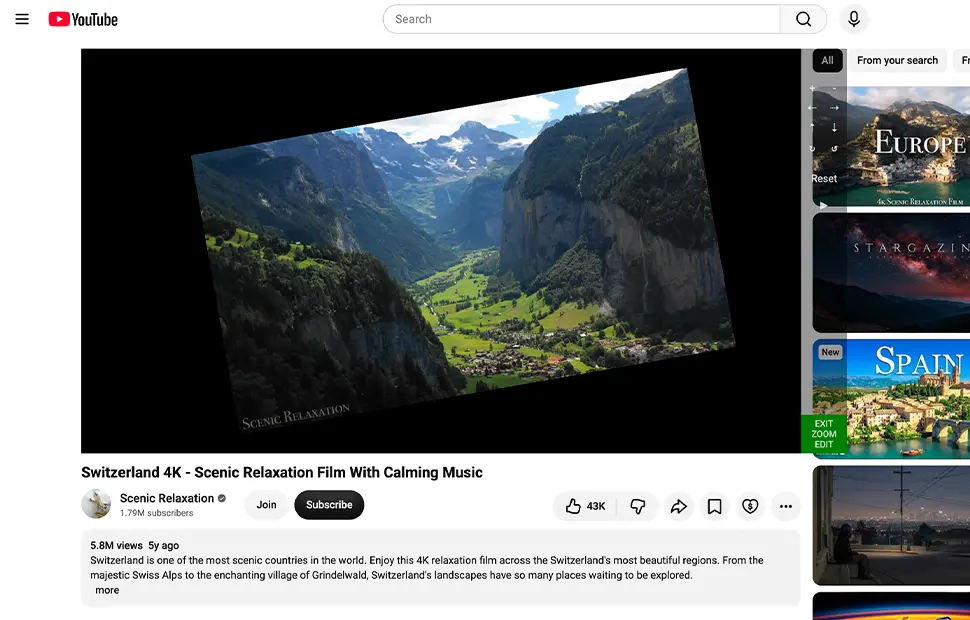
How the Zoom panel works
The Zoom button is available in the video toolbar that Turn Off the Lights adds to the current HTML5 video player. When you move your mouse over the video, a control panel appears on the right side, providing a complete set of tools:
- Zoom in and zoom out on the video content
- Move the video content up, down, left, or right inside the frame
- Rotate the video to fix sideways or upside-down footage
Press and hold a button to keep zooming, moving, or rotating smoothly until you release it. The zoom engine changes the content of the video itself, not the browser page, so subtitles, overlays, and player controls stay untouched.
Zoom stays put in full screen
Turn Off the Lights remembers your zoom level when you enter or exit full-screen mode, so a magnified video keeps its framing instead of snapping back to 100%. You can also open the Zoom panel with a customizable keyboard shortcut, which makes it practical to adjust the picture without reaching for the mouse mid-video.
Made for detail, cropping, and accessibility
Zoom in to read small on-screen text in a tutorial, enlarge a sports replay or a security-camera clip, crop away the letterbox bars on a cinematic video so it fills your display, or rotate a phone-recorded clip that was uploaded sideways and nudge the frame to center it. For viewers with low vision, magnifying the video content directly is far more comfortable than squinting at a small embedded player. The Zoom panel sits on the same toolbar as the Repeat button, the Video Speed Controller, the Video Effect Filters, and the Video Screenshot, so magnifying the picture is one part of a complete video toolbox.
How to zoom a video
- Install the free Turn Off the Lights browser extension for Chrome, Firefox, Edge, Opera, Safari, or your preferred browser.
- Right-click the gray lamp button in your browser toolbar and select Options.
- Open the Advanced Options tab and scroll down to the Video Toolbar section.
- Enable the Show the toolbar below your screen to customize the current video player checkbox. Then enable Zoom in or out on video content using the zoom button.
- Play any HTML5 video and click the Zoom button on the video toolbar. Use the control panel to zoom in or out, move the video frame, or rotate the video to your preferred viewing angle.
Frequently asked questions
How do I zoom in on a YouTube video?
YouTube does not offer a built-in video zoom control. To add this feature, install the free Turn Off the Lights browser extension, enable the Video Toolbar in the Advanced Options, and turn on the option to display the Zoom button next to the video player. The Zoom control panel allows you to zoom in or out, move the video content up, down, left, or right, and rotate the video to adjust the viewing angle.
Can I rotate a video that plays sideways?
Yes. Open the Zoom panel on the video toolbar and use the rotate buttons to turn the video content, handy for phone-recorded clips that were uploaded sideways or upside down. You can also move the rotated frame up, down, left, or right to center it.
Does video zoom work in full-screen mode?
Yes. Turn Off the Lights retains your last zoom level when you enter or exit full screen, so a magnified video keeps its framing instead of resetting to 100%.
Can I zoom a video with the keyboard?
Yes. Turn Off the Lights includes a keyboard shortcut that opens the Zoom panel, and you can customize it on the shortcut keys page inside the extension options.
Does video zoom work on sites other than YouTube?
Yes. Because the Zoom panel controls the standard HTML5 video element directly, it works on any website that plays HTML5 video, including Vimeo, Dailymotion, Facebook, news sites, and learning platforms.
Is the video zoom feature free?
Yes. It is included in the free and Open-Source Turn Off the Lights browser extension, with no in-app purchases or subscriptions, on Chrome, Firefox, Edge, Opera, Safari, and other supported browsers. You can read the code yourself on GitHub.
It's the ultimate tool for your web browser to control your web and video experience, made for video lovers like you. Download Turn Off the Lights today and see every detail in your favorite videos.