Atmosphere Lighting Around the HTML5 Video Player
A Philips Ambilight-style glow that reacts to the video: in your browser
Love the Ambilight effect on Philips TVs, where light spills around the screen to match the picture? Atmosphere Lighting in the free Turn Off the Lights browser extension brings that experience to any online video. The feature analyzes video frames 60 times per second and generates light effects around the player that correspond to the content, appearing when you press play and softly fading away when the video pauses or ends.
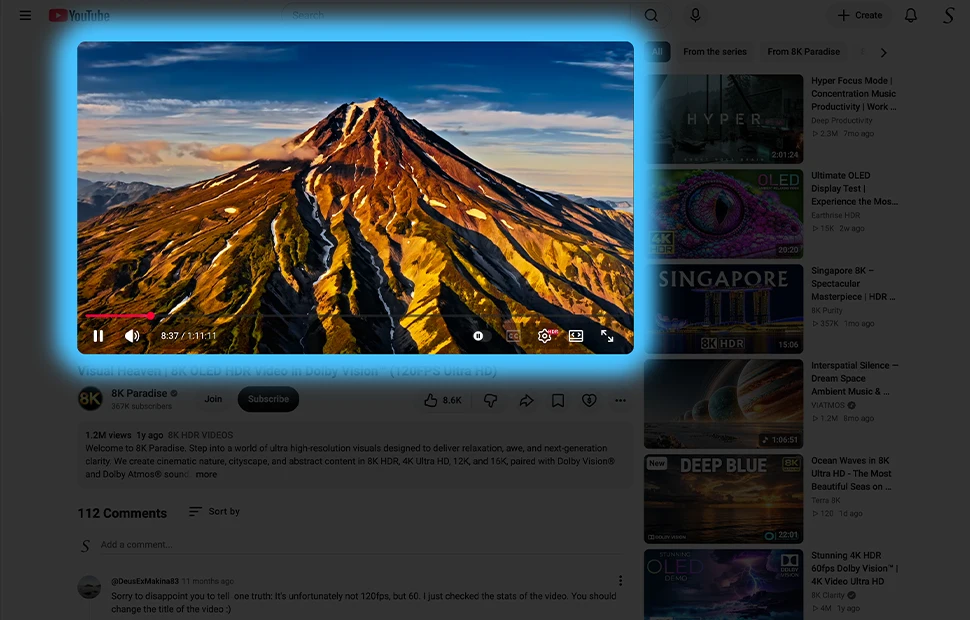
One backlighting color
The one-solid-color mode is the simplest way to make a video more enjoyable, a steady glow such as cyan blue wraps the player. The smooth transition in and out feels like the lights in your bedroom gently turning off and on.
Four solid colors
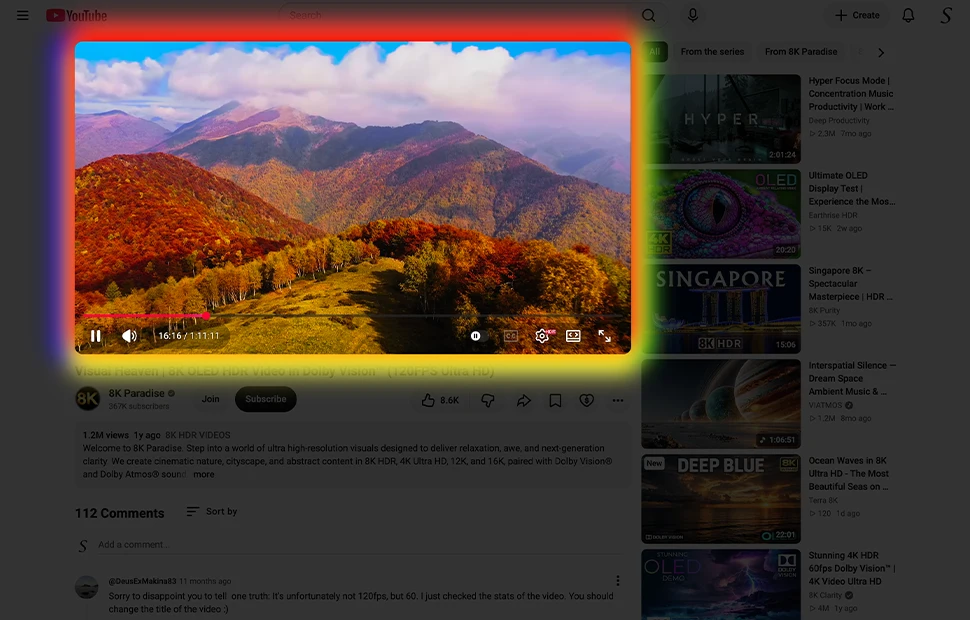
Want a more playful frame? Pick up to four colors yourself, one for each border of the video player from a wide range including blue, green, yellow, red, pink, black and white. Match your team colors for a sports stream, go pink and purple for a music video, or keep it subtle with two tones. Works on YouTube and on regular HTML5 videos everywhere.
Real colors: the true Ambilight effect
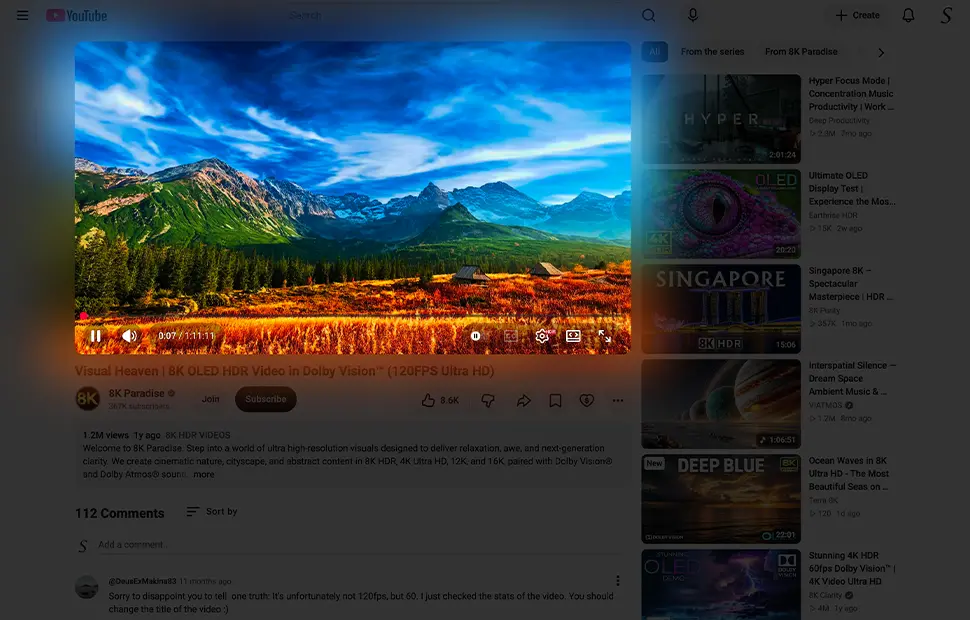
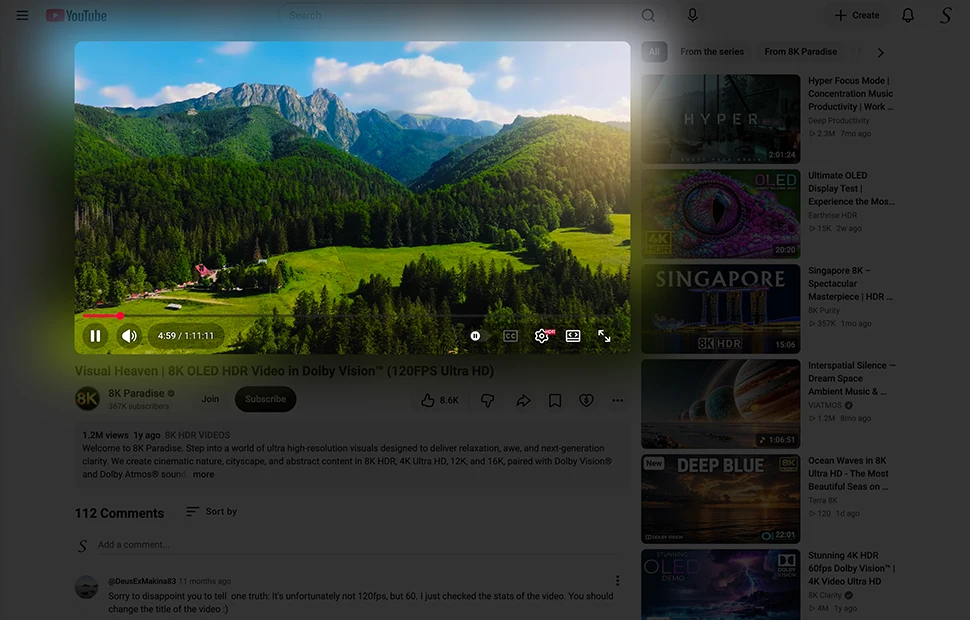
The most impressive mode samples the actual colors of the video content itself and projects them around the frame in real time, a vivid, reactive cinema glow no other browser extension offers.
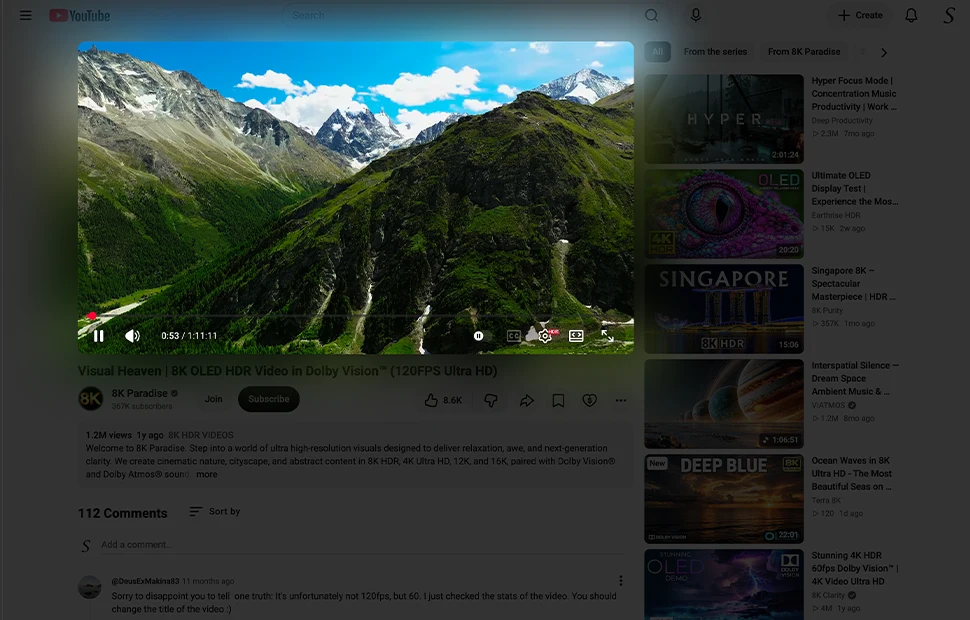
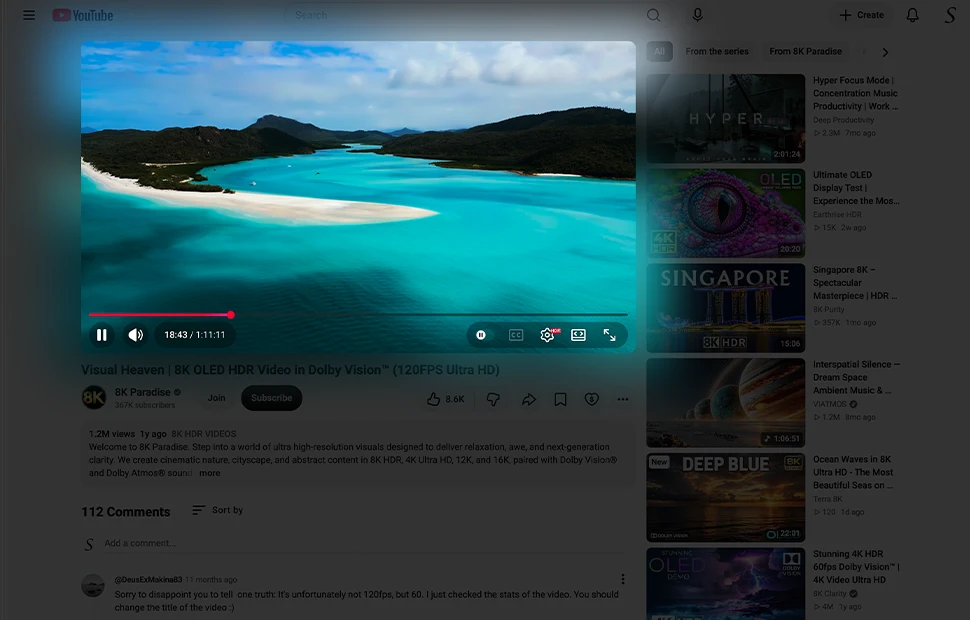
Atmosphere Lighting vs. YouTube's built-in ambient mode
YouTube has its own ambient mode that blurs a soft glow around the video on youtube.com. It is a nice touch, but it is limited: it only works on the YouTube website, only in dark theme, and only with one fixed style you cannot change.
Atmosphere Lighting goes much further:
- Works everywhere, on YouTube and on any other website with an HTML5 video player, not just one site.
- Three modes, one solid color, four colors you pick yourself, and real colors that sample the video frame.
- Light or dark, the cinema glow effect appears in any theme, while YouTube's ambient mode hides in light mode.
- Your colors, choose the exact hue and strength that matches your room and your screen.
If you like the idea of YouTube ambient mode but want that ambient light on every video site, in your own colors, Atmosphere Lighting is the free upgrade. And because Turn Off the Lights is Open-Source, you can check exactly how the glow is rendered and trust that nothing tracks your watching.
Bias lighting: ambient light that is easier on your eyes
Watching a bright screen in a dark room forces your eyes to adjust constantly between the bright picture and the dark surroundings. That high contrast is a common cause of eye strain during long viewing sessions. Bias lighting, a soft ambient light around the screen, eases that contrast and makes the picture feel more comfortable and more immersive at the same time.
Atmosphere Lighting gives you that bias lighting effect without any extra hardware. The ambient light glow around the video player softens the edge between the bright frame and the dark room, and because it fades in and out with the video it never distracts. Pair it with Night Mode to dim the rest of the page for an even gentler viewing experience.
For the most comfortable result, pick the one-solid-color mode with a soft neutral hue such as warm white, or let the real-colors mode do the work and keep the glow subtle. A gentle ambient light that stays close to the colors on screen is easier on your eyes than a bright, saturated frame, especially during movies and long binge sessions in the evening.
How to enable Atmosphere Lighting
- Install the free Turn Off the Lights extension for Chrome, Firefox, Edge, Opera, Safari or your favorite browser.
- Right-click the gray lamp button, choose Options, and enable Atmosphere Lighting. Pick one color, four colors or the real-colors vivid mode.
- Play any YouTube or HTML5 video, the glow appears around the player instantly.
Frequently asked questions
How do I get Ambilight on my computer videos?
Install the free Turn Off the Lights extension and enable Atmosphere Lighting. It generates a glow around the video player that matches the video content, like Philips Ambilight for your browser.
What Atmosphere Lighting modes are there?
Three modes: one solid color for a steady glow, four solid colors you pick yourself for each edge, and real colors, a vivid mode that samples the actual video frame for a true Ambilight effect.
Does the glow stay on when the video is paused?
No. When the video pauses or ends, the cinema glow effect gently fades to zero, like the lights in a real room slowly turning back on.
Is Atmosphere Lighting free?
Yes. It is included in the free and Open-Source Turn Off the Lights browser extension on Chrome, Firefox, Edge, Opera, Safari and other supported browsers. For videos on your computer, try the Aurora Player.
Combine it with Movie Theater Mode for the full cinema effect. Download Turn Off the Lights and light up your videos.