
Table of Contents
Pattern Overlay is a new feature in the Turn Off the Lights for Desktop screen dimmer app for Windows, introduced in the latest update. It lets you customize the dimmed layer with three stylish patterns: Dots, Grids, and Slashes. Adjust the pattern’s opacity to create a more comfortable, distraction-free workspace and stay focused on your selected app.
This feature was introduced alongside the latest Turn Off the Lights MCP update, which gives users and developers more control over how their screens dim using their favorite code editor or AI agent. With the new pattern overlay feature in Turn Off the Lights for Desktop, you can personalize the dimmed background while keeping the application in the foreground as the main focus.
Whether you prefer a clean grid, a subtle dotted texture, or stylish diagonal slashes, you can choose the pattern that best suits your workspace and create a more personalized desktop experience.
Pattern Layer
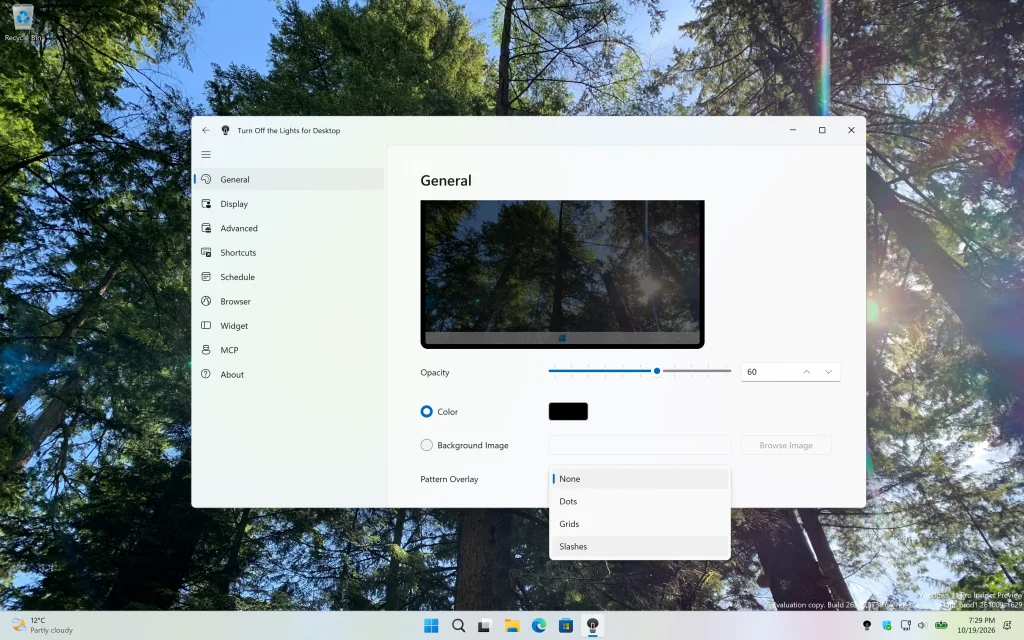
The Pattern Layer feature offers three different overlay styles: Dots, Grids, and Slashes. Each pattern provides a unique visual effect, allowing you to personalize the dimmed background to match your preferences.
You can also adjust the pattern’s opacity to control how visible it appears. Increase the opacity to make the pattern more prominent, or decrease it for a more subtle effect. This flexibility helps you find the right balance between visual style and a distraction-free workspace.
To enable the Pattern Layer, open the Settings page in the Turn Off the Lights for Desktop Windows app and navigate to the General tab. There, you will find a selection box where you can choose your preferred pattern.
Grids
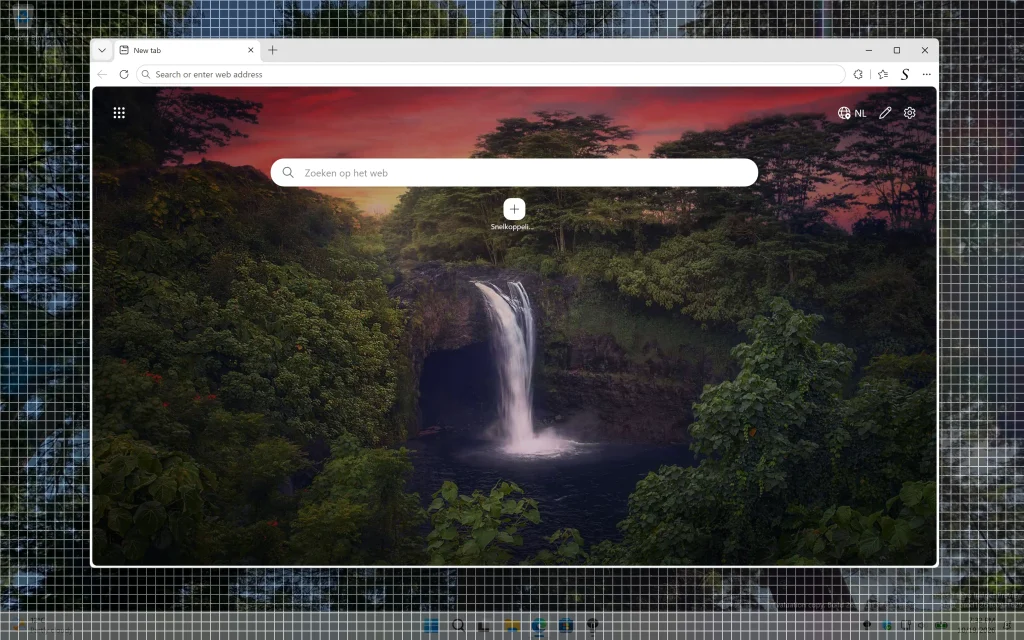
The Grids pattern adds a structured grid to the dimmed layer. Its clean, organized appearance is ideal for users who prefer a consistent visual style while keeping their attention on the active application.
Dots
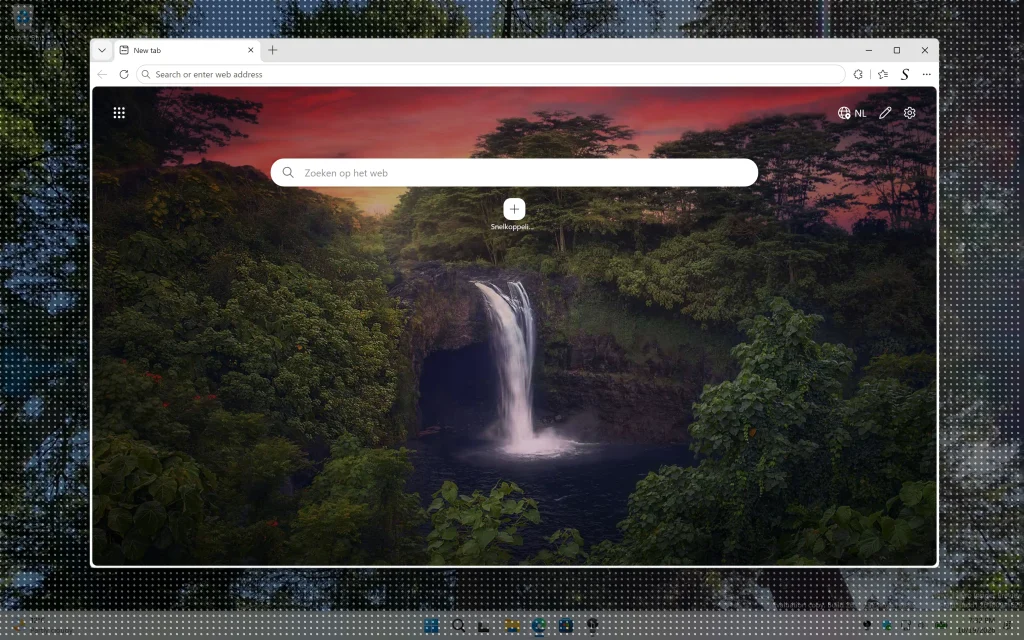
The Dots pattern creates a dotted texture across the dimmed background. It offers a different look while helping you customize your desktop environment to suit your personal taste.
Slashes
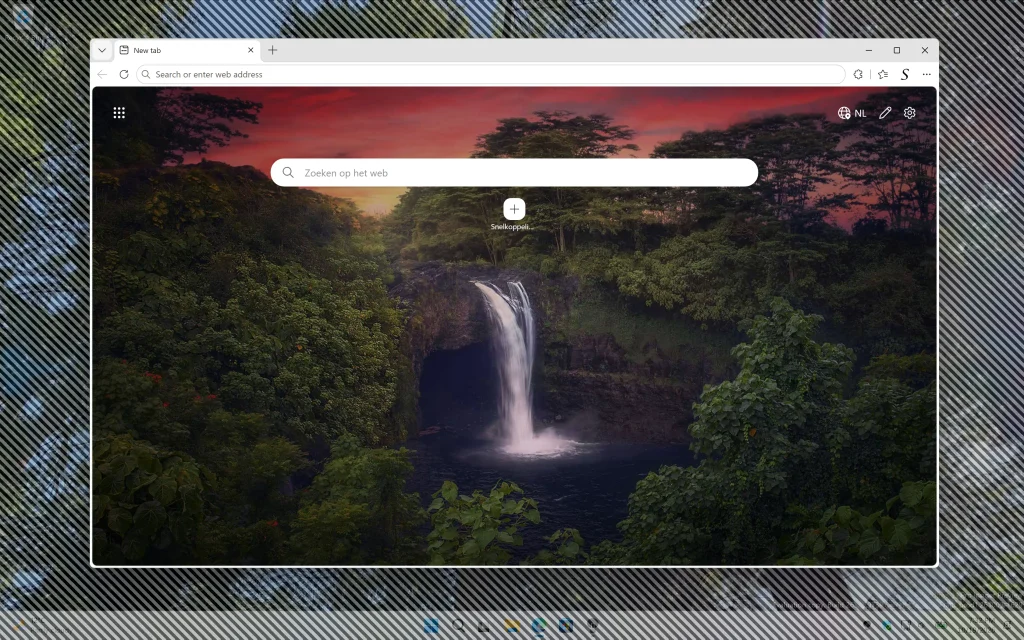
The Slashes pattern uses diagonal lines to give the dimmed layer a distinctive appearance. Choose this option if you want a different visual texture while keeping the application in the foreground as the main focus.
Download Turn Off the Lights for Desktop
Ready to customize your dimmed screen? Download Turn Off the Lights for Desktop for Windows from the Microsoft Store and try the new Pattern Layer feature for yourself.
Choose your favorite pattern, adjust its opacity, and create a desktop environment that helps you stay focused on the application you are using. With these new customization options, Turn Off the Lights for Desktop makes it easier to personalize your screen and enjoy a more focused computing experience.
