Loop Any HTML5 Video on Repeat, Including YouTube
One click replays your video forever: on YouTube and every other site
Looping a video means playing it again automatically every time it ends, with no manual restart. YouTube hides the option behind a right-click menu, and most other video sites offer no loop option at all. The free Turn Off the Lights browser extension fixes both problems: it adds a Repeat button to every HTML5 video player, so a single click keeps your video playing on YouTube, Vimeo, Dailymotion, Facebook, news sites, and learning platforms.
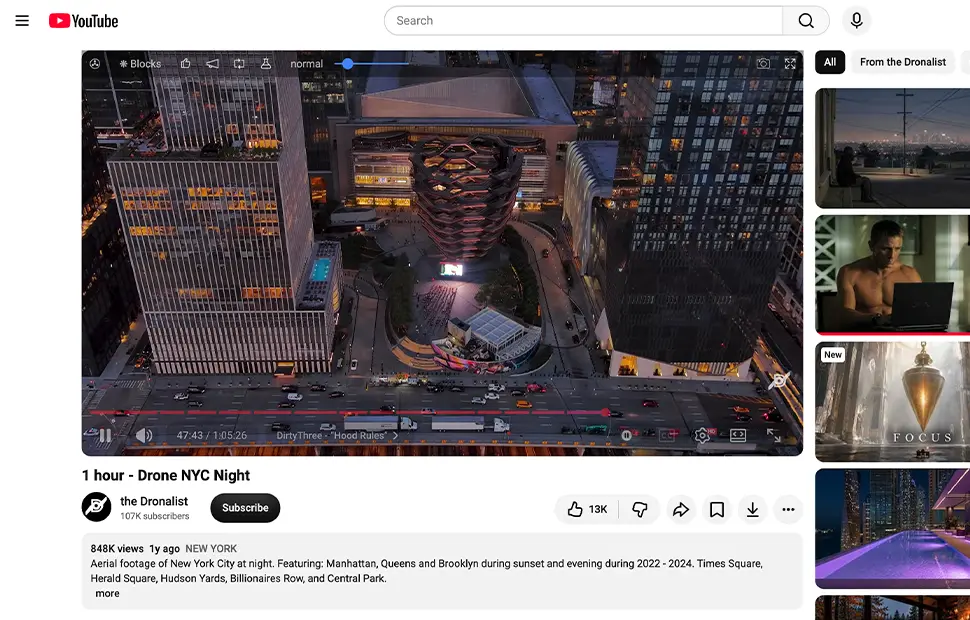
How the Repeat button works
The Repeat button lives on the video toolbar that Turn Off the Lights adds to the current HTML5 video player. Click it once and the video's loop property switches on, when the video reaches the end, it starts again from the beginning by itself. Click the button again to return to normal, single-play behavior. The state is per video, so you can loop one clip while the next plays once.
More than YouTube's built-in loop
YouTube's own loop only exists in the right-click menu of its desktop player, and plenty of sites — course platforms, social feeds, news embeds — have nothing like it. Because the Repeat button controls the standard HTML5 video element directly, it works anywhere the browser plays video, not just where a site decided to offer the option. It sits on the same toolbar as the Video Speed Controller, the Video Zoom, and the Audio Visualization, so repeat playback is one part of a complete video toolbox.
Made for music, ambient, and study sessions
Loop a favorite song or album-mix on YouTube Music, keep a fireplace or rain ambient video running for hours, replay a workout routine until the set is done, or repeat a tricky tutorial segment while you practice along. Combined with dimming the rest of the page, a looped ambient video turns any browser tab into a calm, distraction-free backdrop.
How to loop a video
- Install the free Turn Off the Lights browser extension for Chrome, Firefox, Edge, Opera, Safari, or your preferred browser.
- Right-click the gray lamp button and select Options.
- Navigate to the Advanced Options tab and scroll down to the Video Toolbar section.
- Enable the Show the toolbar below your screen to customize the current video player checkbox.
- Play any HTML5 video and click the Repeat button on the video toolbar. The video will automatically restart each time it finishes playing.
Frequently asked questions
How do I loop a YouTube video?
On YouTube itself, right-click the video player and choose Loop. To loop a video on any website, install the free Turn Off the Lights extension and click the Repeat button it adds to every HTML5 video player, the video restarts automatically each time it ends.
Can I loop videos on sites other than YouTube?
Yes. Most video sites offer no loop option at all. The Turn Off the Lights Repeat button works on standard HTML5 video players, so it can loop videos on Vimeo, Dailymotion, Facebook, news sites, and learning platforms.
Can I loop only part of a video?
The Repeat button loops the whole video from start to finish, it does not loop a selected section. To rewatch a single moment, drag the video player's own progress bar back to that point, or use the site's keyboard shortcuts such as the J key on YouTube to jump back 10 seconds.
Is the loop feature free?
Yes. It is included in the free and Open-Source Turn Off the Lights browser extension, with no in-app purchases or subscriptions, on Chrome, Firefox, Edge, Opera, Safari, and other supported browsers. You can read the code yourself on GitHub.
It's the ultimate tool for your web browser to control your web and video experience, made for video lovers like you. Download Turn Off the Lights today and keep your favorite videos playing on repeat.