Video Screenshot for Web Videos
Capture the exact frame you are watching, right from the video player
Found the perfect frame in a video? With Video Screenshot in the free Turn Off the Lights browser extension, you can grab that frame in one click. The feature adds a camera button to the video player on YouTube and other websites, so you capture the frame at full quality instead of screenshotting your whole screen.
How it works
Enable the Video Toolbar in the extension options and a camera button appears on the video player. Pause on the moment you want, click the camera button, and Turn Off the Lights captures the current frame of the HTML5 video. The frame opens in the capture tool where you can review and save it. No extra software or screen-capture utilities are needed.
Edit the frame before you save it
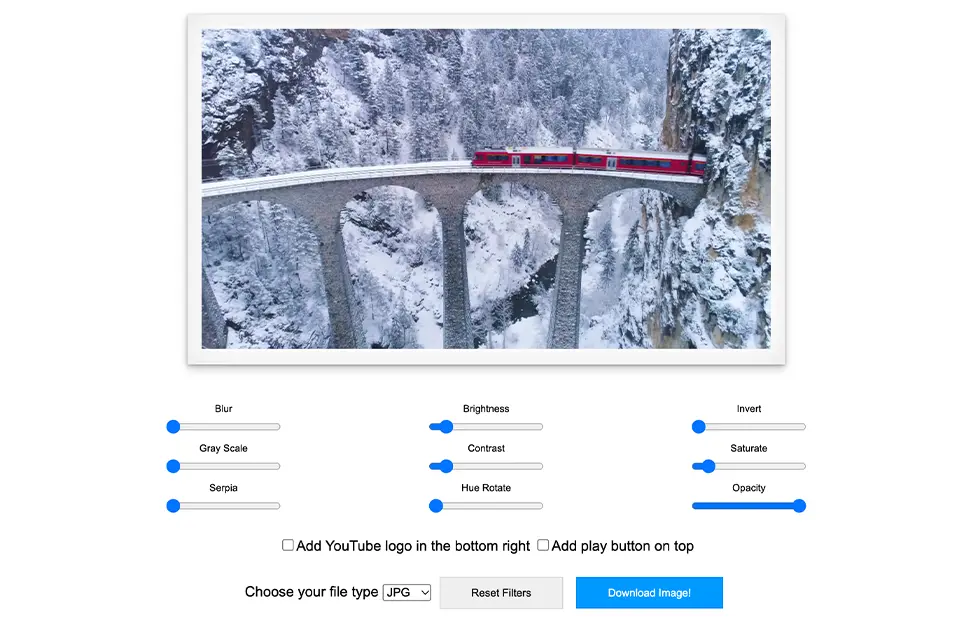
The capture tool includes built-in filters so you can polish the frame without opening an image editor: blur, grayscale, sepia, brightness, contrast, hue rotate, invert, saturate, and opacity. You can also overlay a YouTube logo or a play button, which makes it handy for creating custom video thumbnails.
Save it in the format you need
Download the captured frame as JPG, PNG, BMP, TIFF, or WebP. WebP gives you the smallest file size at the same image quality, which is ideal for web use and video thumbnails.
Try the capture tool
Ready to grab a frame? Open the Video Screenshot capture tool: with the extension installed and the Video Toolbar enabled, your captured frame appears there, ready to edit and download.
How to capture a screenshot of a video
- Install the free Turn Off the Lights extension for Chrome, Firefox, Edge, Opera, Safari, or your favorite browser.
- Right-click the gray lamp button, choose Options, and enable the Video Toolbar so a camera button appears on the video player.
- Play any HTML5 video, click the camera button to capture the frame, then edit it on the capture page and download it as JPG, PNG, BMP, TIFF, or WebP.
Frequently asked questions
How do I take a screenshot of a YouTube video?
Install the free Turn Off the Lights extension and enable the Video Toolbar in the options page. A camera button appears on the video player: click it to capture the exact frame you are watching.
Does video screenshot work outside YouTube?
Yes. It works on every HTML5 video player, including videos on Vimeo, Dailymotion, social media, and news websites, anywhere the browser plays video.
Can I edit the captured frame before saving?
Yes. The capture tool lets you apply filters such as blur, grayscale, sepia, brightness, contrast, hue rotate, invert, saturate, and opacity. You can also add a YouTube logo or a play button overlay before downloading.
Which image formats can I download?
You can save the captured frame as JPG, PNG, BMP, TIFF, or WebP. WebP gives the smallest file size at the same image quality.
Is the video screenshot feature free?
Yes. It is included in the free and Open-Source Turn Off the Lights browser extension on Chrome, Firefox, Edge, Opera, Safari, and other supported browsers.
A handy tool for creators and viewers alike, and one of many features in the extension. Combine it with Movie Theater Mode for a distraction-free frame worth capturing. Download Turn Off the Lights and start capturing.