
Table of Contents
Introduction
In a digital age dominated by user-centric features, the demand for customization is higher than ever. One such feature gaining popularity is Dark Mode, providing users with a visually comfortable experience, especially during low-light conditions. In this guide, we will walk you through the seamless process of enabling Dark Mode on Amazon, enhancing your browsing experience. Automatically adds a dark mode for Amazon. That is possible at zero cost for the users. You will discover it below for all devices that include mobile (Android and iOS), and desktop (web).
What is Amazon?
Amazon.com is an American multinational conglomerate technology company based in Seattle, with 750,000 employees. It focuses on e-commerce, cloud computing, digital streaming, and artificial intelligence. It is considered one of the Big Four technology companies, along with Google, Apple, and Facebook. Amazon does not have a built-in dark mode or an official Amazon dark mode. That makes all the store pages a dark-colored version. However, you can get the most comfortable online shopping Amazon Dark Mode. So you see all the biggest selections of books, magazines, music, DVDs, videos, electronics, computers, software, apparel & accessories, shoes, etc in a night theme.
In all countries, the Amazon website is available, which is the country’s domain. Such as amazon.fr (for French), amazon.nl (for Dutch), and amazon.de (for German). However, in Belgium, the domain name amazon.be is used for an insurance company. That is only located in Belgium. So Amazon.com, Inc. An American multinational technology company solved it with the domain name www.amazon.com.be in mid-July 2022.
For more information about the Amazon Kindle Dark Mode, see this help page.
Does Amazon Have a Built-in Dark Mode?
Yes, the Amazon mobile app includes a built-in dark mode feature, allowing users to switch to a darker interface that is easier on the eyes, especially in low-light environments. This option is available on both iOS and Android devices and can usually be enabled through the app’s settings or by matching your device’s system-wide theme.
However, the Amazon desktop website currently does not offer an official native dark mode. Users browsing Amazon on a computer will see the standard light theme by default. To achieve a dark mode experience on desktop, many people rely on browser extensions or third-party tools that can apply a dark theme to websites.
In the sections below, we will walk you through how to enable dark mode on the Amazon app and explore alternative solutions for using dark mode on the desktop version.
PC/browser, Android app, iPhone app
How to Enable Dark Mode in the Amazon App (Android)
To get your dark mode theme, follow these steps:
- On your Android device, open the Amazon app
- Tap the menu icon(three horizontal lines) in the corner of the screen
- Next, tap on the menu item “Settings”
- In the menu panel, tap on “Display”
- Select “Dark” to make the change to get your Amazon Dark Mode theme. You can also change it back to a light theme.
How to Enable Dark Mode in the Amazon App (iOS)
To switch between light and dark mode, follow these steps:
- On your iPhone or iPad device, open the Settings app
- Scroll down and select Accessibility
- Scroll to the bottom and tap Per-App Settings
- Tap Add App and select Amazon from the list
- Tap on the Amazon app in the list, then select Smart Invert
- Set Smart Invert to On
How to Enable Dark Mode on Amazon Website (Desktop)
On the Amazon website, there is no built-in option or switch to enable Dark Mode across all shopping pages. However, with the Turn Off the Lights browser extension, you can customize a dark website style to match your personal preferences, including the background, text, and hyperlink colors.
This night mode can make browsing more comfortable for your eyes, both during the day and at night. You can also choose when the dark interface turns on automatically, for example, by setting it to activate at 11 PM.
Turn Off the Lights is a free browser extension available for all major web browsers, including Google Chrome, Safari, Firefox, Opera, Maxthon, Yandex, Brave, Vivaldi, Naver Whale, and Microsoft Edge.
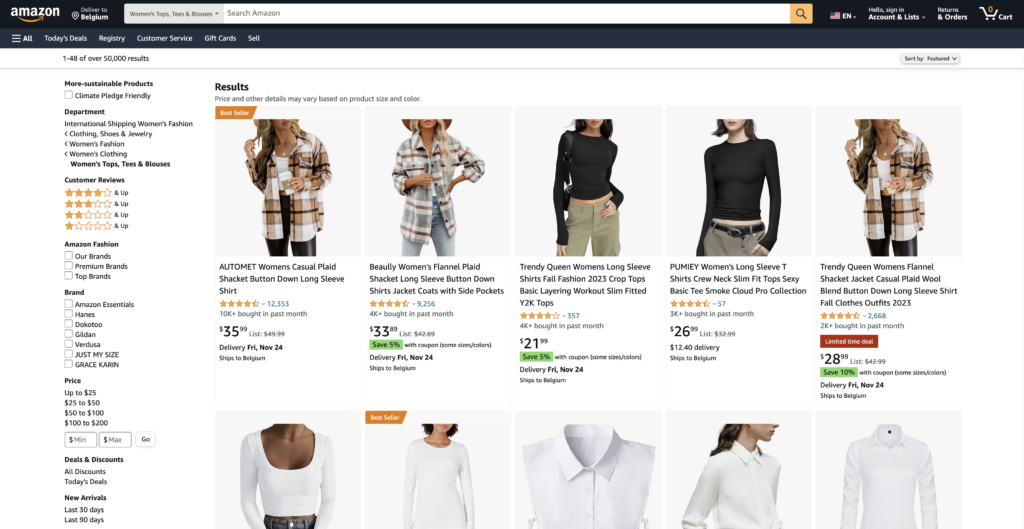
Before screenshot on the Amazon website:
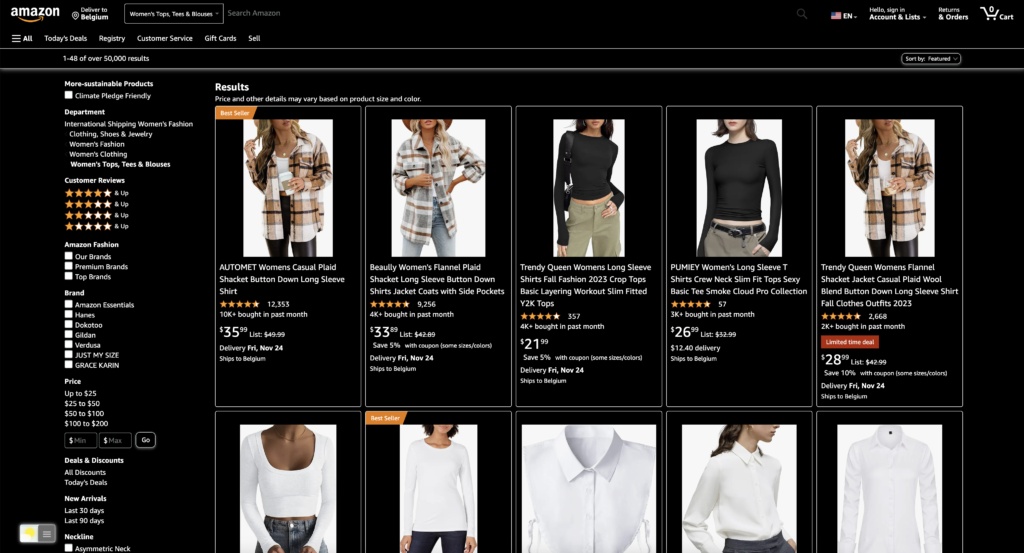
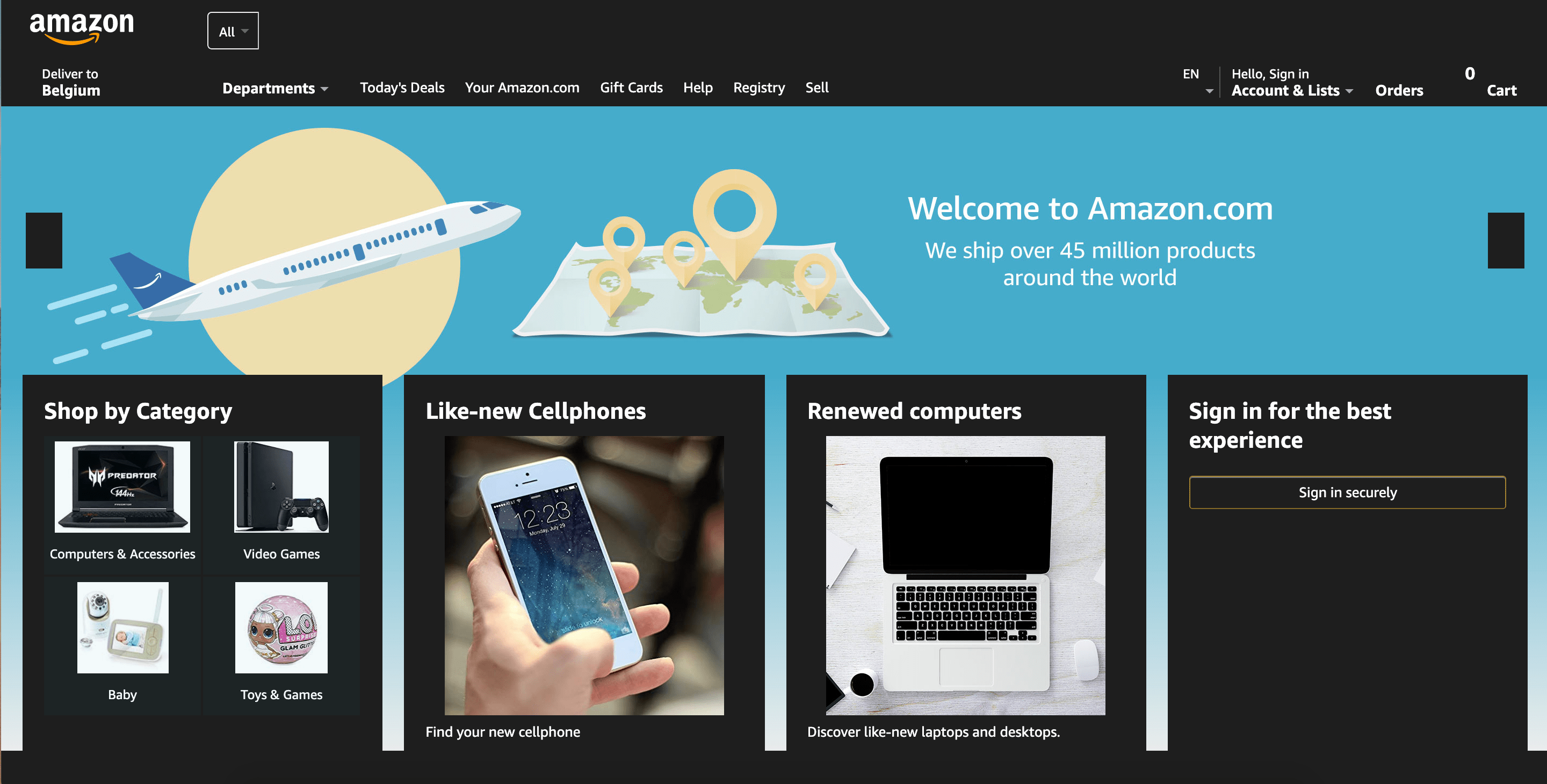
After screenshot on the Amazon website, when enabling Turn Off the Lights the Night Mode feature:
Follow the steps below on how to turn on Amazon Dark Mode. And that on your personal web browser. So get a comfortable Dark Mode website:
- Install the free Turn Off the Lights Browser extension for your favorite web browser
- Installation completed, open the Turn Off the Lights Options page by clicking on the gray lamp button. Choose from the right-click menu the menu item Options
- Then select the Night Mode tab, and enable the first checkbox
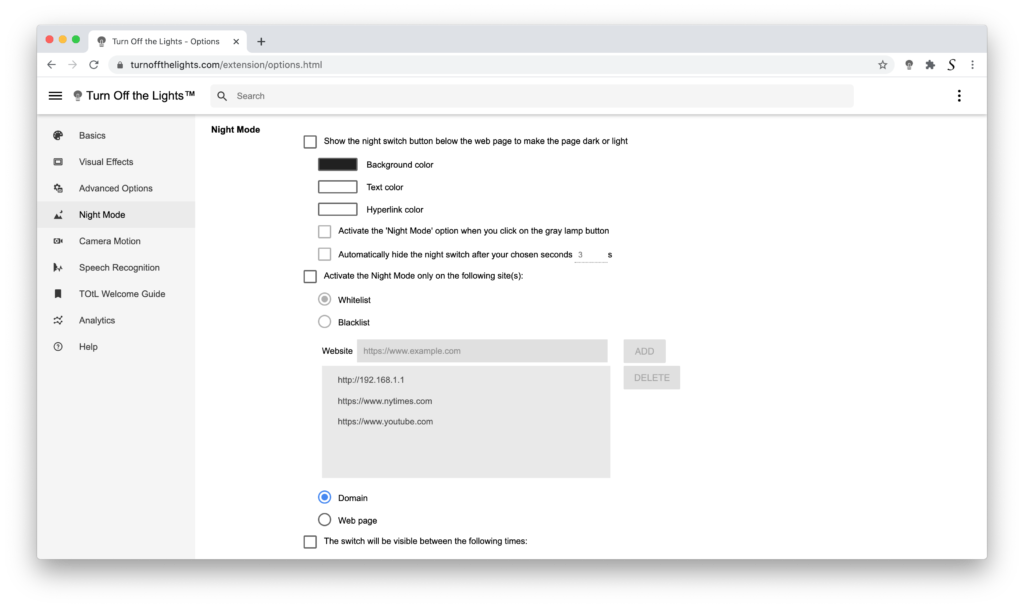
When you open Amazon or any other website, you will see the night switch on the bottom left of your screen. Here you can toggle Night Mode on and off.
How to Enable Amazon Dark Mode on Safari / iOS browser
You can get iOS 15 Amazon Dark Mode, and that in your Safari web browser. That is by using the “Turn Off the Lights for Safari” app. That is available for FREE (and Open-Source) on macOS, iOS, and iPadOS.
Compatible with iOS 15 and higher(launched in September 2022).
How to Enable Amazon Dark Mode on Android web browser (Firefox/Kiwi/Yandex/Edge)
Currently, the only way to convert the Amazon website to Night Mode version. So you get an Amazon Dark mode Android version. That is to install the Firefox mobile web browser or Kiwi web browser (Chromium) or Yandex web browser. And install the Turn Off the Lights browser extension. Then open the Turn Off the Lights Options page, and enable the Night Mode feature. Follow the 3 instruction steps on how you can get started to get a Night Mode ready on your device:
- Download the web browser app from the Google Play Store such as:
Firefox on Google Play Store
Kiwi on Google Play Store
Yandex on Google Play Store - Then open the browser add-on/extension gallery and search for the extension name “Turn Off the Lights“. And install it
- Next, open the Turn Off the Lights Options page, and in the Night Mode tab enable the night switch or the long deep press function to activate the Night Mode on the current web page.
How to Enable Amazon Kindle Dark Mode
Enabling Dark Mode on Amazon Kindle devices is simple and user-friendly. Here’s how you can do it:
- Access Settings: Turn on your Kindle device and go to the home screen.
- Open Quick Settings: Swipe down from the top of the screen to access the Quick Settings menu.
- Select Dark Mode: From the Quick Settings menu, you’ll find the Dark Mode icon. Tap on it to activate Dark Mode.
- Customize Settings (optional): Kindle allows you to adjust the font size, boldness, and orientation to tailor the Dark Mode experience to your preferences.
How to Enable Fire TV Dark Mode
Fire TV does not feature a system-wide “dark mode” toggle for its UI.
Important: The benefits of using the Amazon Dark Mode Theme
The dark mode is a popular feature that many users prefer as it reduces eye strain and provides a more comfortable viewing experience in low-light conditions. Additionally, it can also improve battery life on devices with OLED or AMOLED displays as the darker pixels consume less power. Implementing dark mode also provides a more aesthetically pleasing interface, which can lead to a better user experience. These benefits make it important for companies like Amazon to offer dark mode to their users.
In personal preference, Dark mode may not be preferred by all users, and some may find it harder to read or navigate the site with a dark background.
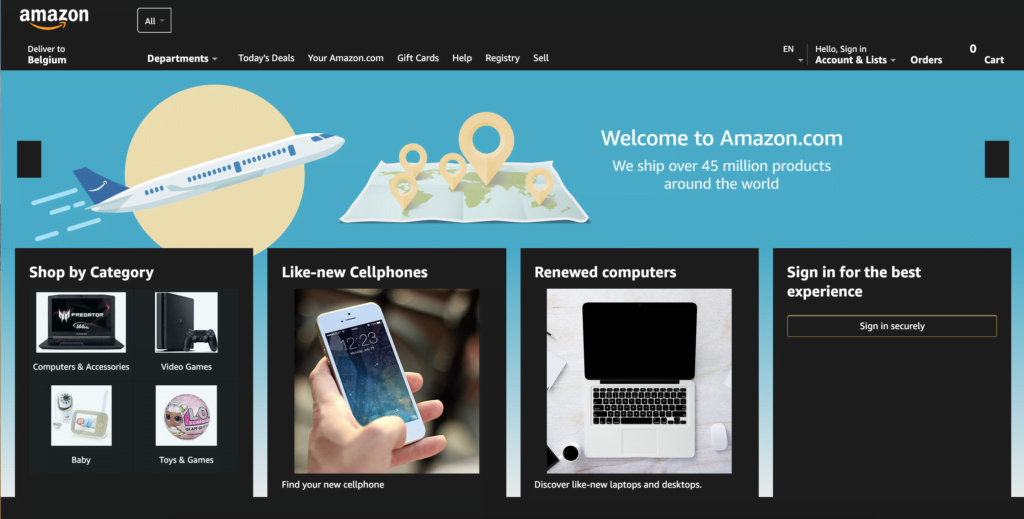
What is the Turn Off the Lights Browser extension?
It is a free and Open-Source browser extension that can customize the web browsing and video experience in your web browser. So you have a comfortable experience for your eyes. That is a unique tool like never been seen and done before. It is also the first and the best browser extension since 2009. That has many useful features that are default disabled to keep it simple for the user. That includes the Nigh Mode feature, to convert the current website to your personal dark theme.
Customize it to my personal Night Mode style
On the Turn Off the Lights Options page, at the Night Mode tab, you can customize the Night Mode feature for all websites. For example, if you want to change the Amazon Dark Mode to a different background color than the solid black and more to a mat black color. You can do this. But you can also change the text, and hyperlink color to your favorite comfortable color.
Furthermore, if you are on an Amazon website, click double on the gray lamp button in your web browser toolbar. It will open the mini settings panel. Here you can open the Night Mode tab, and instantly change the background, text, and hyperlink color. The browser extension will see and save automatically these new values. And instantly show the result on the currently open page.
Change the position of the night switch
On the Turn Off the Lights Options page, you can change the default position of the night switch that is visible on your Amazon Dark Mode version. You can change the position to the following options:
- Bottom Left
- Bottom Right
- Top Left
- Top Right
- Your custom position on the web page
Activate Night Mode with a long press
If you want to hide the night switch on the web page, you can do this too. And you can use the long press on the current web page to enable the Night Mode feature. To enable this option, you must enable this on the Turn Off the Lights Options page. When this long-press feature is enabled, with a long press on the current web page it will activate your Amazon Dark Mode theme and vice versa.
Video Tutorial on how to enable Dark Mode
These steps in the video are the same for all major web browsers. That includes the following web browsers: Google Chrome, Safari (version 14 and higher), Firefox, Opera, and Microsoft Edge. If you have an issue or a bad experience, do not hesitate to contact us from the Turn Off the Lights support contact form. We are here to help you, to get you a great and comfortable web experience that is best for your eyes.
Security & Privacy
Turn Off the Lights take your security and privacy very seriously when you are using the extension, and there are no any potential risks associated with it. Turn Off the Lights and do what it must do and it is completely free and Open-Source. Everyone can browse the code on GitHub and suggest ideas and improvements.
Amazon Dark Mode web story
Conclusion
I hope that will answer one of your questions about Amazon Dark Mode:
- Is there a dark mode for Amazon?
- Activate dark mode for Amazon desktop
- How to enable Amazon dark mode iPhone?
- How do I make Amazon Black?
- Is there a dark mode for Amazon?
- How to enable dark mode for Amazon?
- How do I make Amazon Dark mode Android?
- What are the steps to activate Amazon darkmode?
- Where to enable Amazon Dark Theme?
Besides the customizable Amazon Dark Mode, you can also get Twitch Dark Mode version, Facebook Night Mode, YouTube Dark Mode, Google Calendar Dark Mode, Pinterest Dark Mode, etc.
If you find it useful to have your Amazon in Dark Mode, you can share the link on Facebook or X. So your family, friends, or colleagues can know about this handy free tool.
Amazon Dark Mode FAQ
Is there a dark mode for Amazon?
Amazon does not officially support the Dark Mode version of its website. However, you can get a personal dark mode theme by installing the free and most popular Turn Off the Lights Browser extension and enabling the Night Mode feature from the extension’s Options page.
How to enable Dark Mode on Amazon
Install the free and most popular Turn Off the Lights browser extension. Open the Turn Off the Lights Options page, and in the Night Mode tab, enable the switch to get all pages in Dark Mode.
How do I turn on dark mode on Amazon?
You can get a personal dark mode theme by installing the free and most popular Turn Off the Lights Browser extension and enabling the Night Mode feature from the extension’s Options page.
How much does this Dark Mode cost on Amazon?
If you use the Turn Off the Lights browser extension, then it costs nothing. Because it is a free and Open-Source browser extension. That is for all major web browsers such as Google Chrome, Firefox, Opera, Safari, Yandex, Vivaldi, Brave, Naver Whale, and Microsoft Edge. However, if you make a small contribution to keep this project it is all welcome.
Can I change the Amazon Dark Mode to my theme?
Yes, on the Turn Off the Lights Options page, you can customize the color of your Night Mode feature. That creates a dark web experience. You can change the following items: the background, text, and hyperlinks.
Why doesn’t Amazon have a dark mode?
That is a good question. That is something only Amazon can answer. However, Amazon may have a large website to adjust to this change instantly. Big companies want to keep their website stable and perform well. To get Amazon Dark Mode, you can install the free Turn Off the Lights browser extension.
How do I make Amazon Black?
It is very easy to get your shopping Amazon Black as a website theme. That with the free and most popular Turn Off the Lights browser extension. Once you installed this browser extension in your web browser, you can enable the Night Mode feature. That can bring all websites in your personal dark mode style.
How do I turn on dark mode on Amazon iOS app?
No. However, you can use the free and Open-Source Turn Off the Lights Safari extension. That converts the Amazon website (and many other websites) to your dark mode style.
Did you find technical, factual or grammatical errors on the Turn Off the Lights website?
You can report a technical problem using the Turn Off the Lights online technical error feedback form.
