
Turn Off the Lights สำหรับเดสก์ท็อป
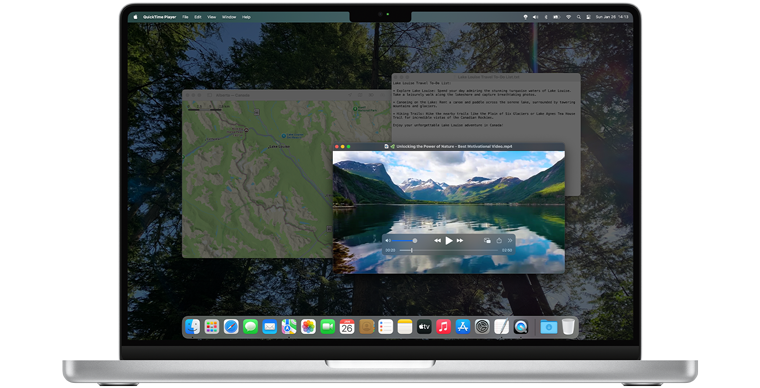
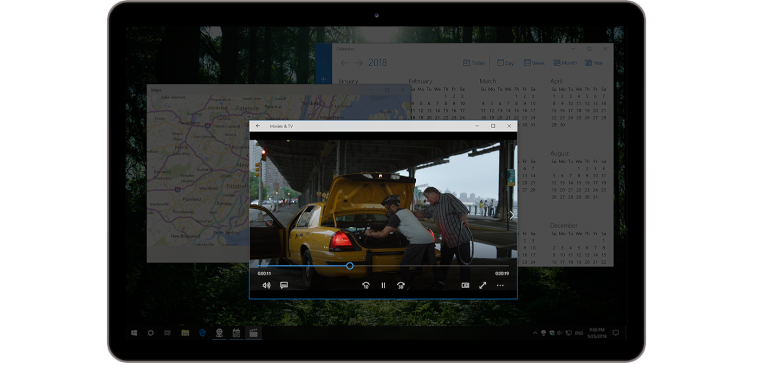
รับจากร้านค้าเหล่านี้


 Aurora Player ตัวเล่นวิดีโอที่น่าทึ่งสำหรับ Windows และ Mac
ดูประสบการณ์ใหม่สำหรับวิดีโอส่วนตัวและวิดีโอที่คุณชื่นชอบทั้งหมด ดูเลย!
Turn Off the Lights สำหรับเดสก์ท็อปคืออะไร?
Turn Off the Lights สำหรับเดสก์ท็อปเป็นแอปพลิเคชันที่มีประสิทธิภาพสูงและใช้งานง่ายสำหรับคอมพิวเตอร์ Windows และ Mac ซอฟต์แวร์นวัตกรรมนี้ช่วยให้ผู้ใช้ควบคุมความสว่างของหน้าจอคอมพิวเตอร์ได้อย่างง่ายดาย พร้อมทั้งช่วยให้โฟกัสแอปพลิเคชันเฉพาะ แอปนี้มีประโยชน์อย่างยิ่งสำหรับผู้ที่ใช้เวลานานหน้าคอมพิวเตอร์และประสบกับความเครียดต่อสายตาหรือปวดศีรษะจากแสงสว่าง
ด้วย Turn Off the Lights สำหรับเดสก์ท็อป ผู้ใช้สามารถปรับความสว่างของหน้าจอได้อย่างรวดเร็วและง่ายดายด้วยการคลิกปุ่มเพียงครั้งเดียว ซอฟต์แวร์ใช้งานง่ายอย่างเหลือเชื่อและให้ประสบการณ์การรับชมที่สะดวกสบายและผ่อนคลาย ไม่ว่าคุณจะทำงาน เล่นเกม หรือเพียงแค่เรียกดูเว็บ Turn Off the Lights สำหรับเดสก์ท็อปเป็นโซลูชันที่สมบูรณ์แบบเพื่อช่วยปกป้องสายตาและลดความเครียดต่อสายตา
ดังนั้นหากคุณต้องการสัมผัสประสบการณ์คอมพิวเตอร์ที่สะดวกสบายและผ่อนคลายมากขึ้น ให้ดาวน์โหลด Turn Off the Lights สำหรับเดสก์ท็อปวันนี้! ไม่ว่าคุณจะใช้ Windows หรือ Mac แอปนี้รับประกันว่าจะปรับปรุงประสบการณ์คอมพิวเตอร์ของคุณและทำให้สายตาของคุณสบายขึ้น
Harvard Health Publishing (2024) ยืนยันว่าการลดความสว่างของหน้าจอรอบๆ จะช่วยเพิ่มความสามารถในการนอนในเวลากลางคืน รวมถึงอารมณ์และความตื่นตัวในเวลากลางวัน ทำให้เครื่องมือเช่น Turn Off the Lights มีประโยชน์ทางการแพทย์สำหรับการรับชมเป็นเวลานาน
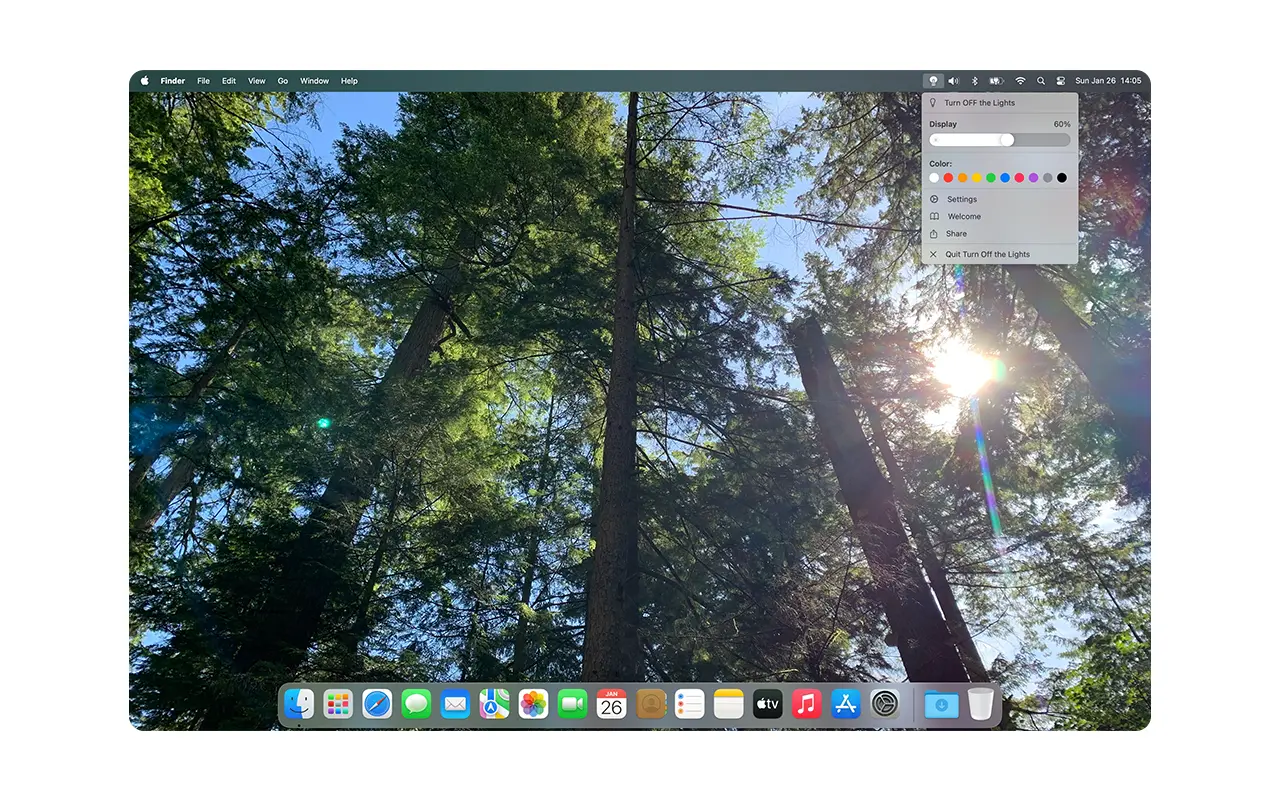
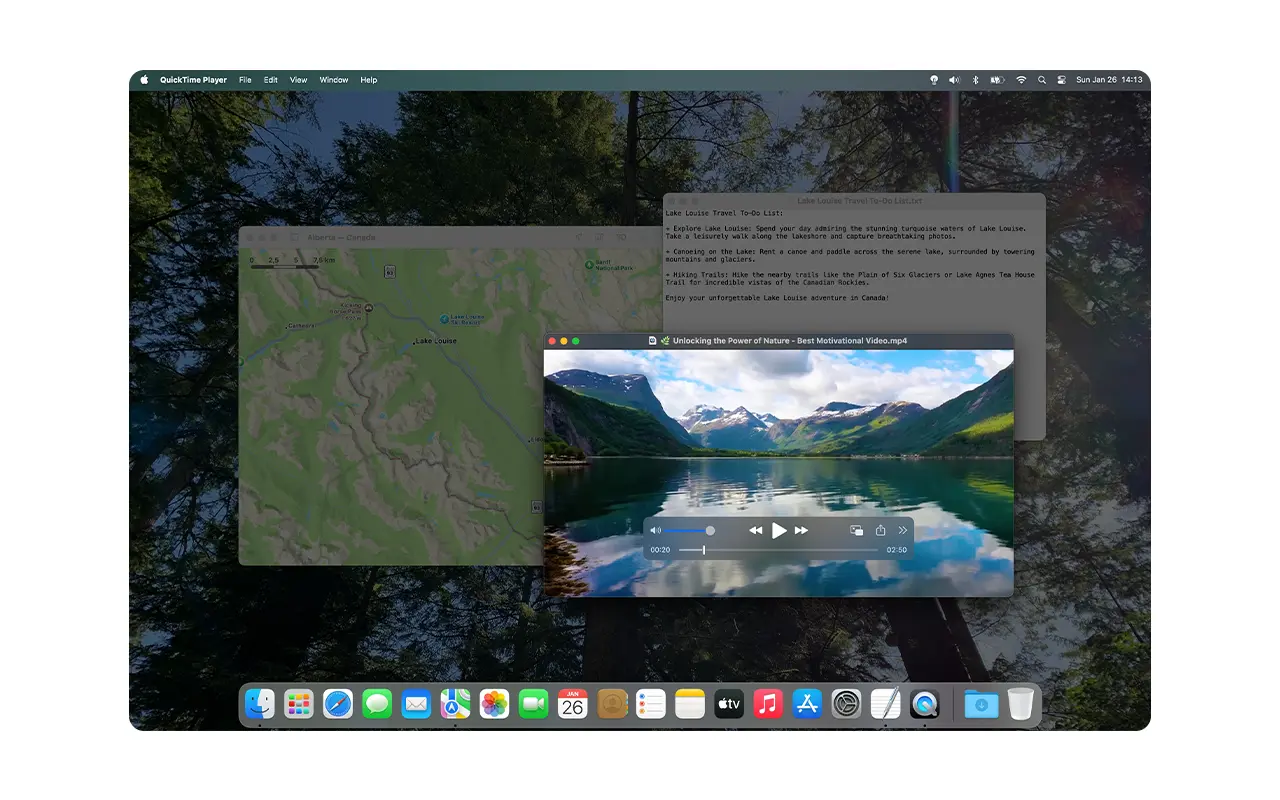
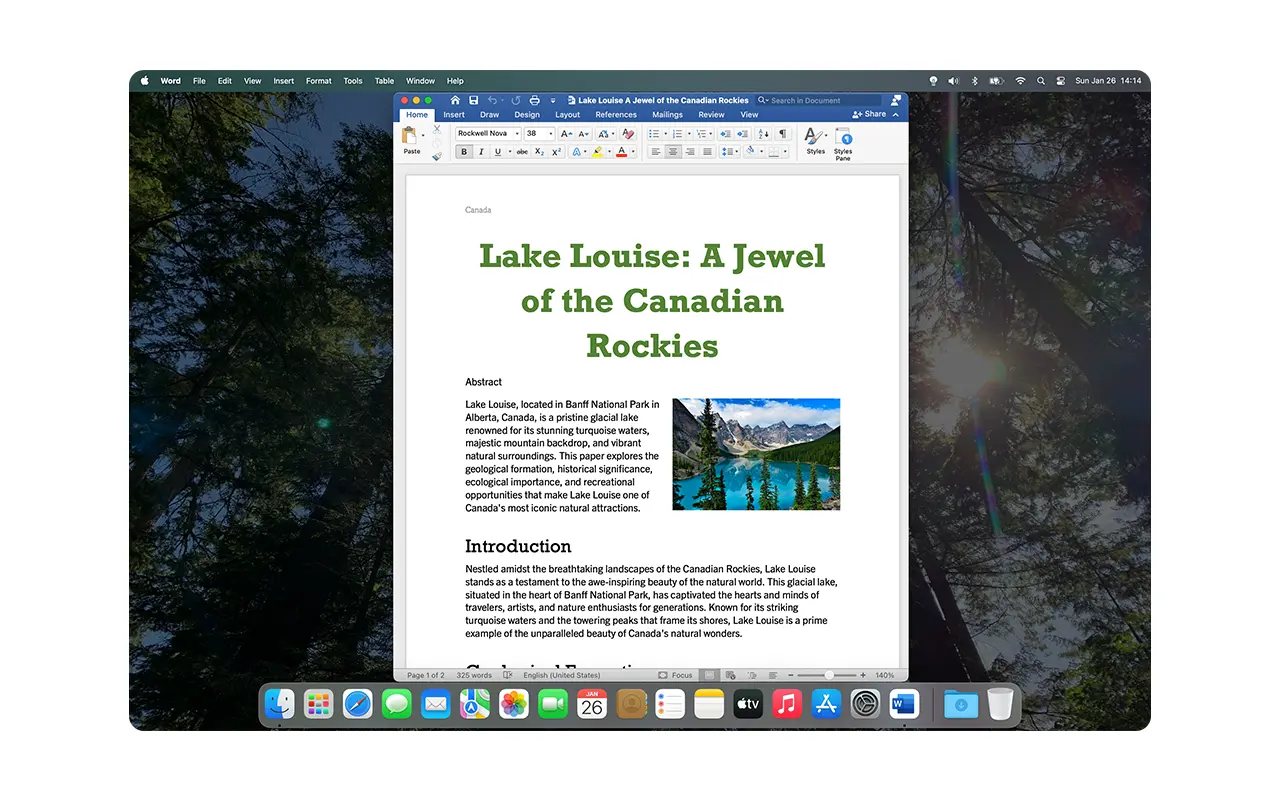
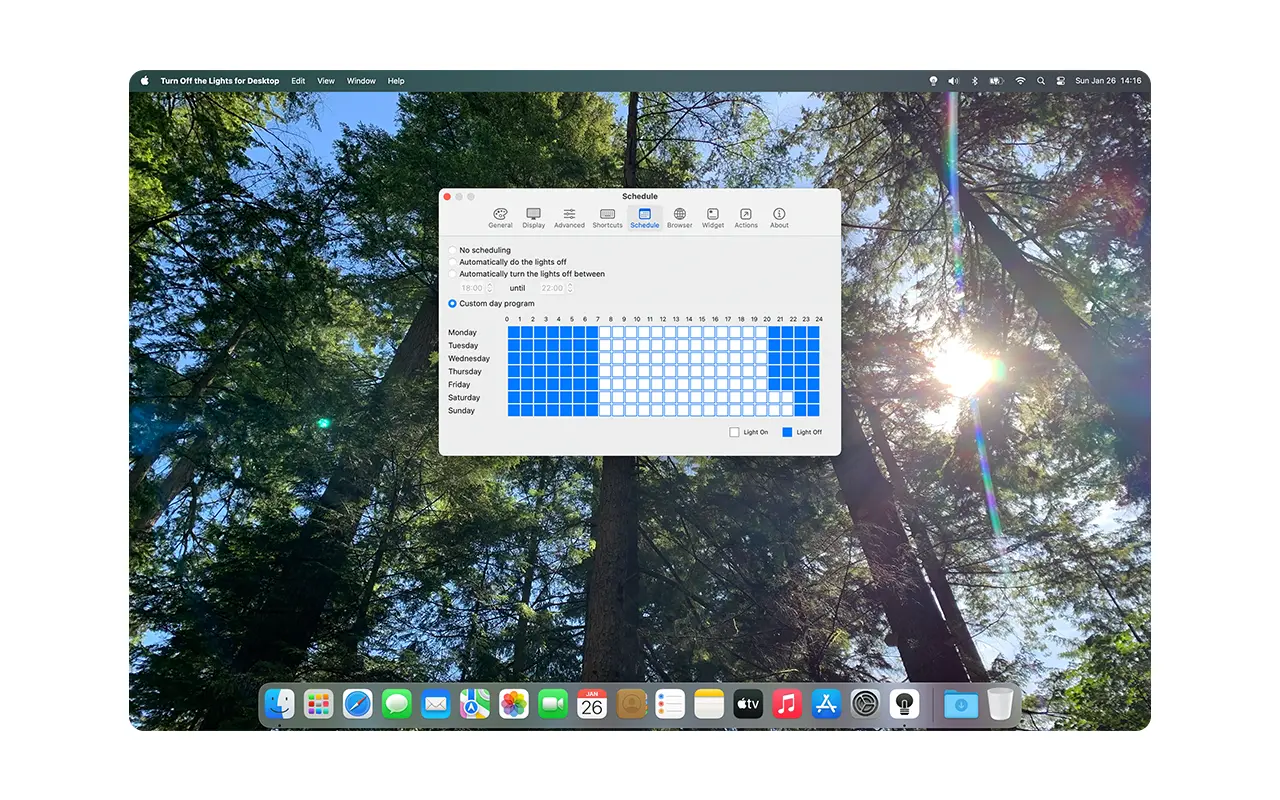
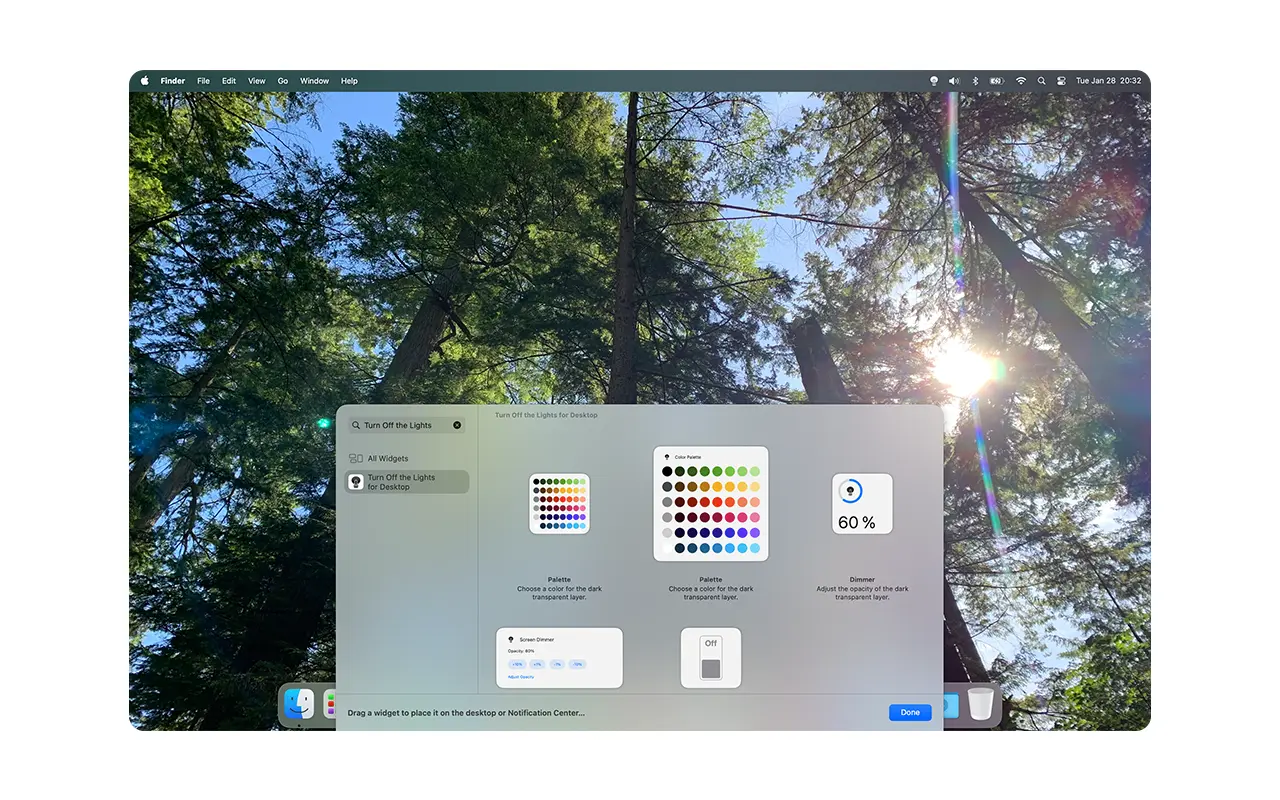
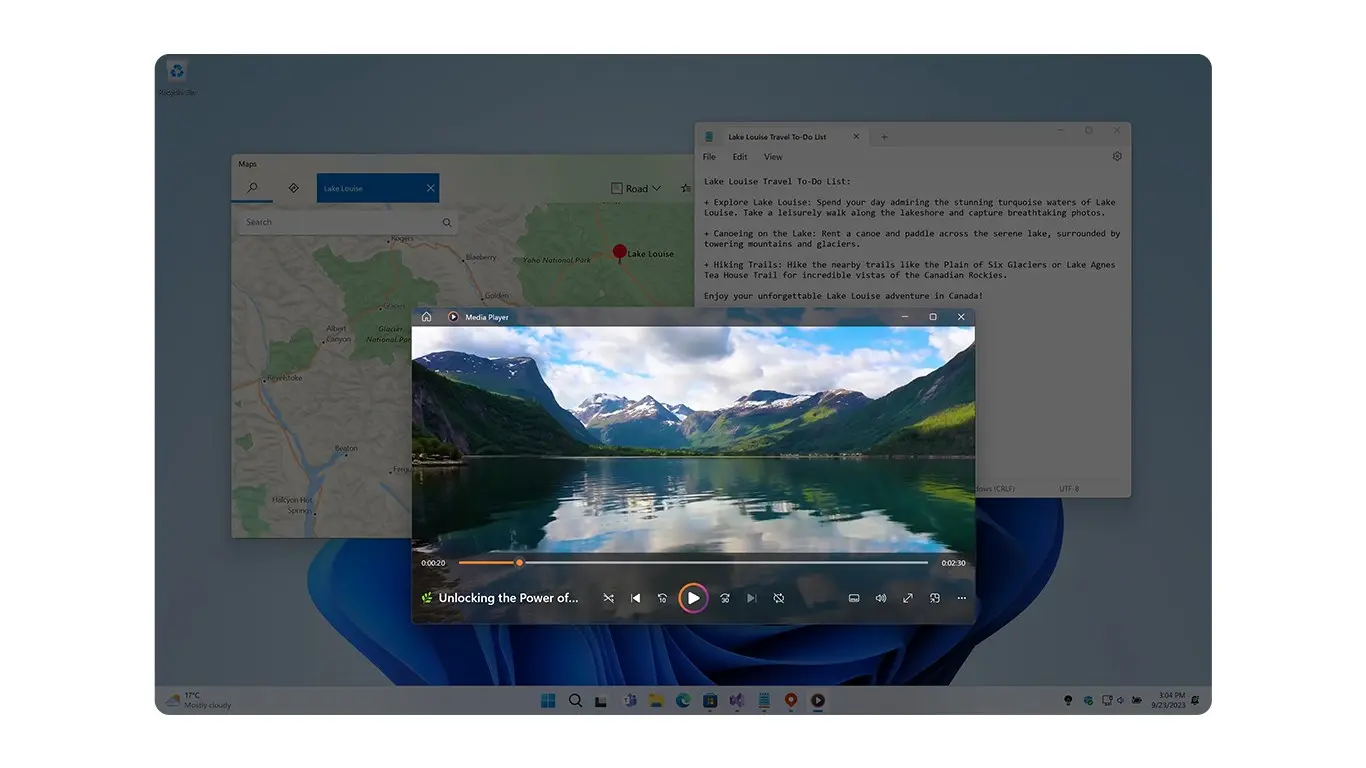

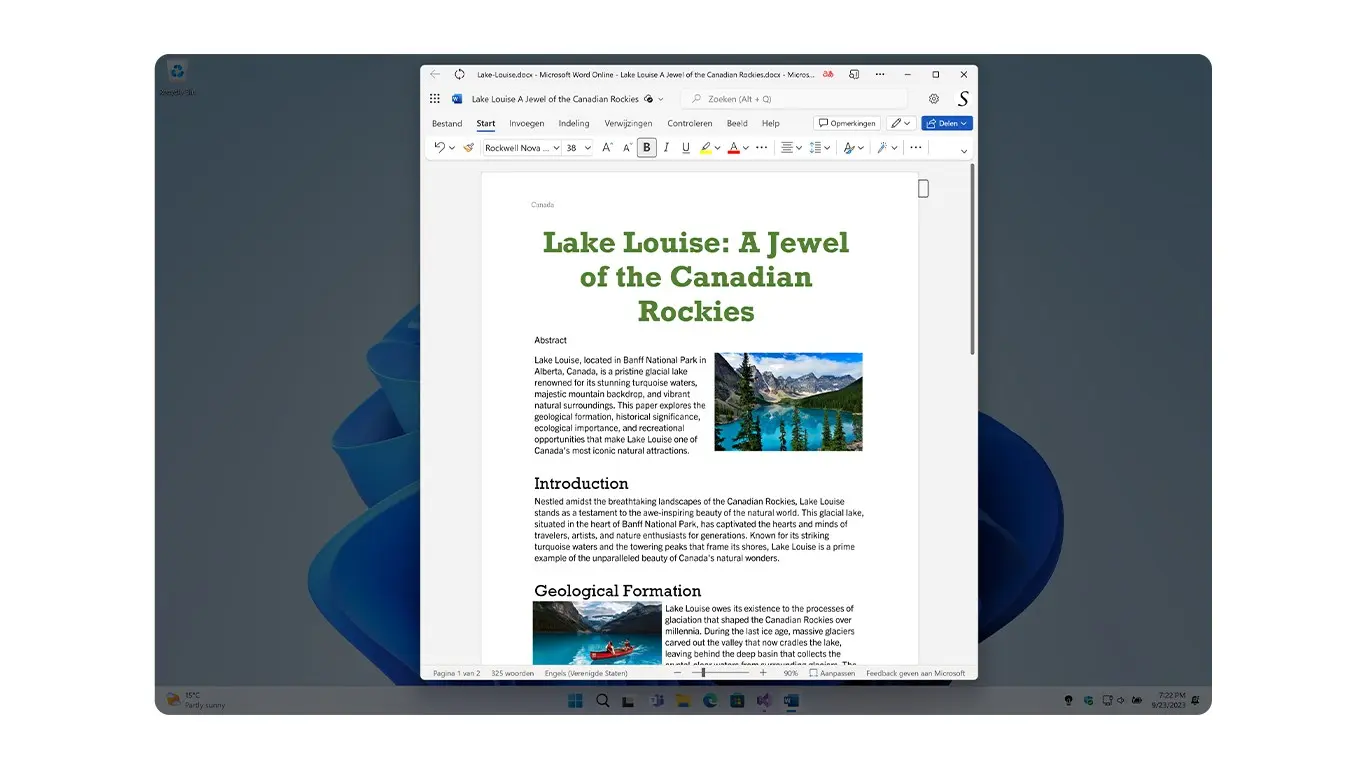
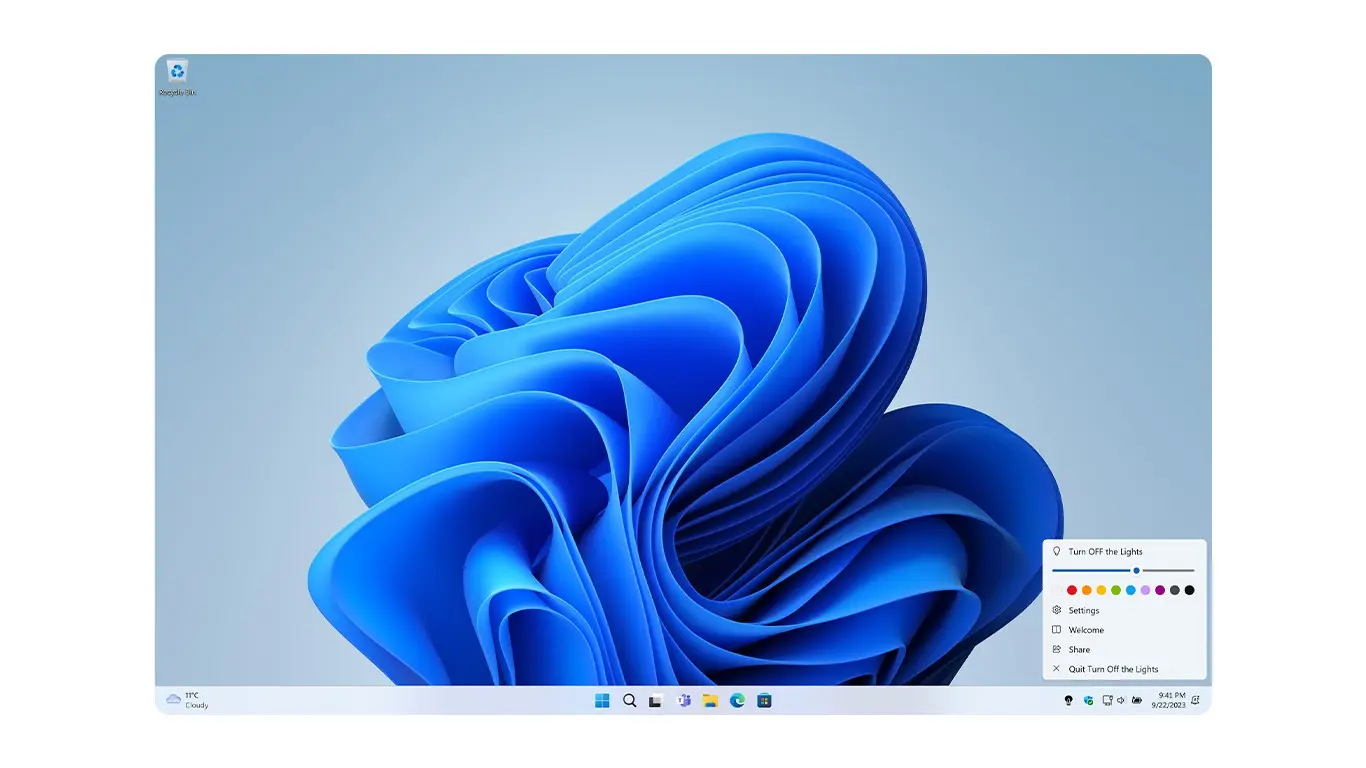
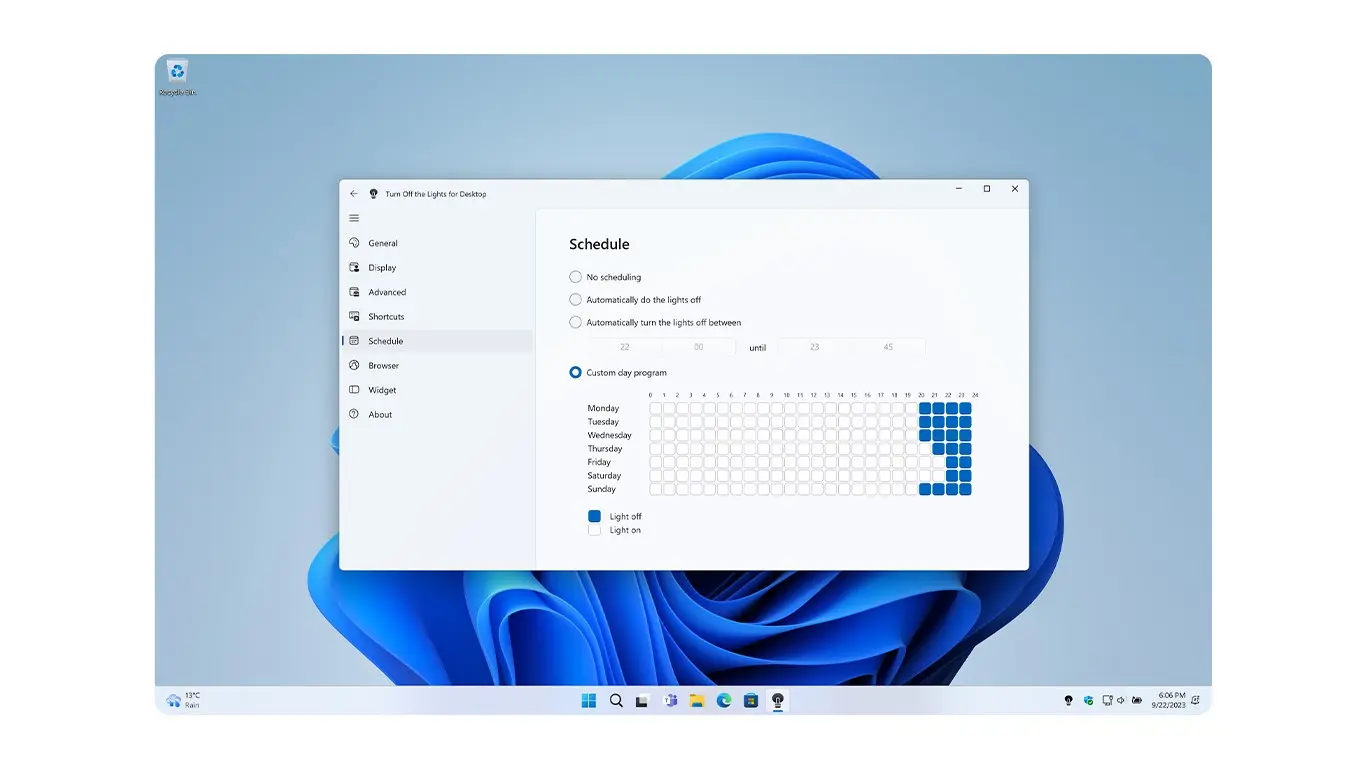
หนึ่งในฟีเจอร์ที่โดดเด่นของ Turn Off the Lights สำหรับเดสก์ท็อปคือความสามารถในการปรับแต่งสีและความโปร่งแสงของเลเยอร์การลดความสว่าง ไม่ว่าคุณจะชอบสีอุ่นสำหรับค่ำคืนที่ผ่อนคลาย สีเย็นสำหรับโฟกัสที่ดีขึ้น หรือหน้าจอมืดสนิทเพื่อลดความสนใจ ฟีเจอร์นี้ช่วยให้คุณปรับปรุงประสบการณ์ตามที่คุณต้องการ
You can easily adjust the settings from the app’s user-friendly interface, ensuring a comfortable viewing experience at all times.
The Spotlight feature is a great tool for those who want to keep their focus on a specific part of the screen. Whether you are making a presentation, recording a tutorial, or simply need to show your mouse more clearly, this feature allows you to highlight your cursor while keeping the rest of the screen dimmed. It is especially useful for educators, video creators, and professionals who need to guide their audience’s attention during online meetings or Demonstrations.
สิ่งรบกวนสามารถส่งผลต่อประสิทธิภาพการทำงานของคุณได้อย่างมาก นั่นเป็นเหตุผลที่ Turn Off the Lights สำหรับเดสก์ท็อปมีฟีเจอร์ Focus App ซึ่งช่วยให้คุณรักษาแอปพลิเคชันที่เลือกไว้ด้านบนเลเยอร์การลดความสว่าง เหมาะสำหรับนักเขียน นักพัฒนา และนักออกแบบที่ต้องโฟกัสที่หน้าต่างเดียวโดยไม่มีสิ่งรบกวนในพื้นหลัง ฟีเจอร์นี้มีประโยชน์อย่างยิ่งเมื่อทำงานกับแอปพลิเคชันหลายตัว ช่วยให้คุณอยู่ในงานของคุณโดยไม่มีสิ่งที่ไม่จำเป็นรบกวน
For those who want quick access to dimming settings, the interactive desktop widgets are the ideal solution. Instead of navigating through menus, you can use the widget to manually adjust brightness, toggle the screen dimmer on or off, or customize the opacity level with just a few clicks. These widgets provide a convenient and efficient way to control your screen brightness without interrupting your workflow.
For Mac users, automation is a game-changer. With the Shortcuts Mac app, you can program the screen dimmer to turn on or off at specific times or under certain conditions. Imagine having your screen automatically dim when you start watching a movie, launch a work-related app, or when the sun sets. This feature ensures hands-free control over your screen dimming settings, making it a seamless part of your daily routine.
Get it from these stores
What is Turn Off the Lights สำหรับเดสก์ท็อป?
Turn Off the Lights สำหรับเดสก์ท็อป is a screen dimming software that allows you to adjust brightness, opacity, and color to create a comfortable viewing experience. It helps reduce eye strain, improve focus, and enhance productivity.
How do I install Turn Off the Lights สำหรับเดสก์ท็อป?
You can download the latest version from the Turn Off the Lights official website. Click on the specific store logo button and follow the installation instructions for Windows or Mac to set it up in minutes.
Can I customize the Turn Off the Lights settings?
The app is a premium application for dimming your screen and includes advanced options such as eye protection, automation, spotlight mode, and app focus.
How do I customize the color and opacity of the dimming effect?
You can easily change the color and opacity in the app settings. Simply open the settings menu and adjust the sliders to find the perfect dimming level for your screen.
Is Turn Off the Lights สำหรับเดสก์ท็อป safe to use?
The Turn Off the Lights สำหรับเดสก์ท็อป app is reviewed by Microsoft and Apple before being published on their stores. It is a 100% safe and trusted application with no spyware or malware. Your privacy and security are top priorities.
Does Turn Off the Lights สำหรับเดสก์ท็อป work on multiple monitors?
Yes! The app supports multi-monitor setups, allowing you to adjust the dimming settings for each screen individually.
How do I uninstall the app if needed?
For Windows, you can uninstall the app by opening the Windows Settings window, navigating to Apps, and searching for Turn Off the Lights สำหรับเดสก์ท็อป. Select the app and choose to remove it from your Windows computer.
For Mac, open Launchpad and search for Turn Off the Lights สำหรับเดสก์ท็อป. Long press the app until it starts to wiggle, then click the X icon on the app. Click Yes to confirm and remove it from your Mac computer.
Where can I get support if I have issues?
If you have any questions or need technical support, visit the Turn Off the Lights Support website. There, you can search for frequently asked questions or contact us directly via email.