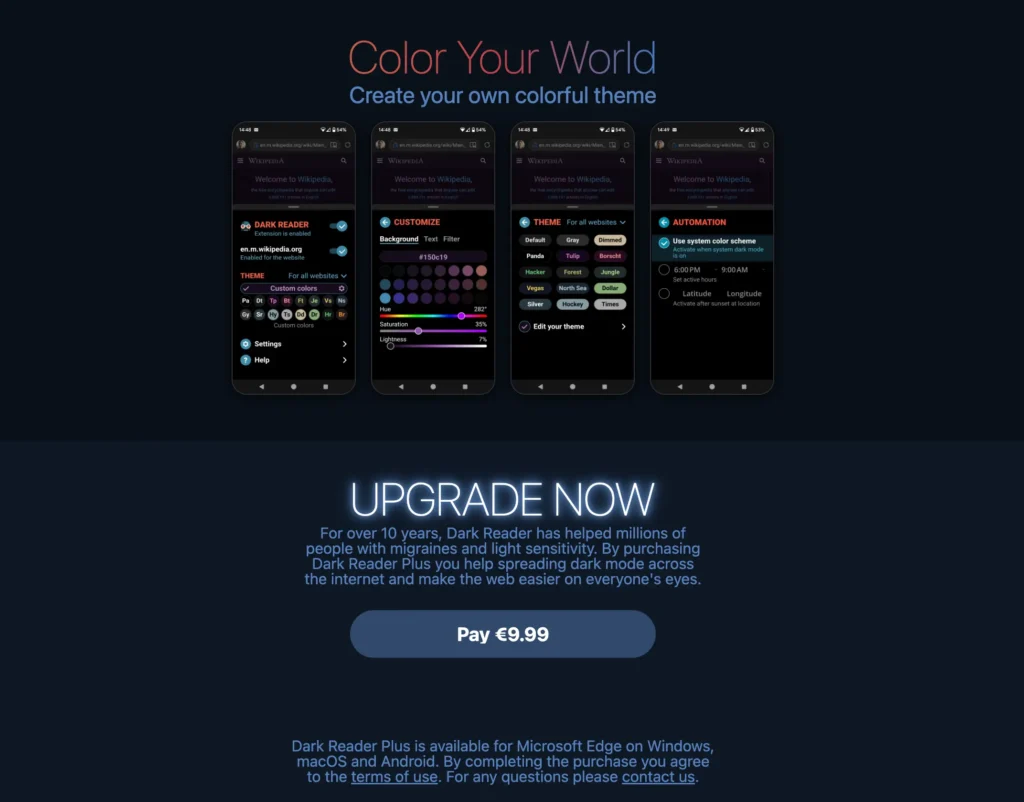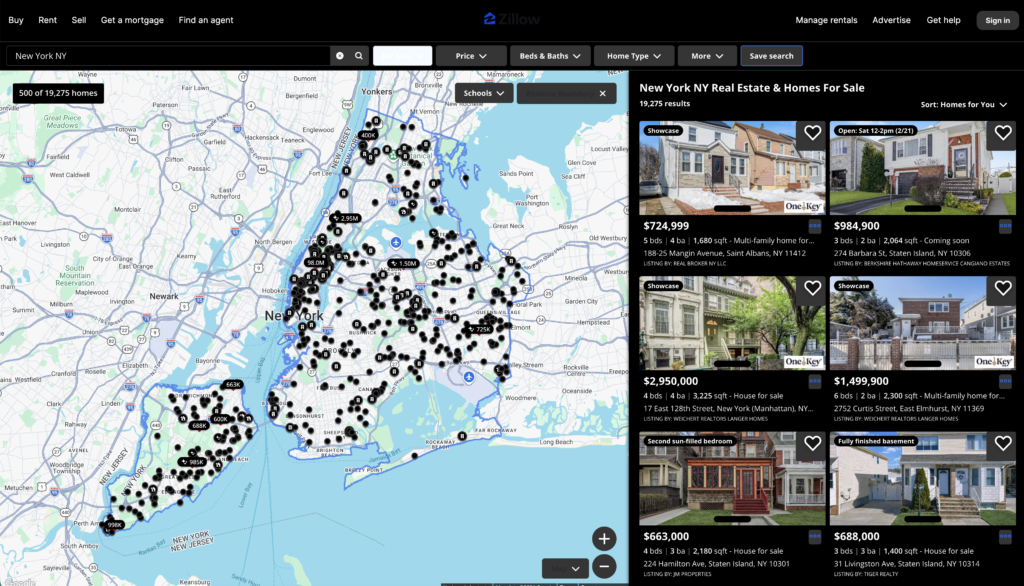
Zillow Dark Mode: How to Enable in 3 steps Night Mode with Turn Off the Lights

If you have been searching for an easy way to activate Zillow Dark Mode, you are not alone. Many users browsing homes late at night want a darker interface to reduce eye strain and make property searching more comfortable. While Zillow does not currently offer a built-in dark theme on its website, there is a simple workaround. By using the Turn Off the Lights browser extension, you can enable a smooth and effective night mode experience in just a few clicks.

In this comprehensive guide, you will learn exactly how to use the Turn Off the Lights extension to simulate Zillow dark mode, why dark mode is beneficial, and how to customize your settings for the best results.


Why Use Zillow Dark Mode?

Before diving into the steps, let us quickly look at why so many users want dark mode when browsing real estate listings:

1. Reduced Eye Strain

Bright white backgrounds can cause discomfort, especially during late-night browsing sessions. A dark interface softens contrast and reduces glare.

2. Better Nighttime Browsing

If you are house hunting in the evening, a darker screen helps prevent harsh light from disturbing your sleep cycle.

3. Improved Focus

Dark themes often make text and images stand out more clearly, which is helpful when reviewing property details and photos.

Although Zillow itself does not provide a built-in toggle, you can still achieve a full-page night mode using the right browser tool.


What Is Turn Off the Lights?

Turn Off the Lights is a popular and free browser extension available for Google Chrome, Microsoft Edge, Firefox, Safari, and Opera. Originally designed to dim the background while watching videos, it does include a powerful “Night Mode” feature that applies a dark theme to any website, including Zillow.

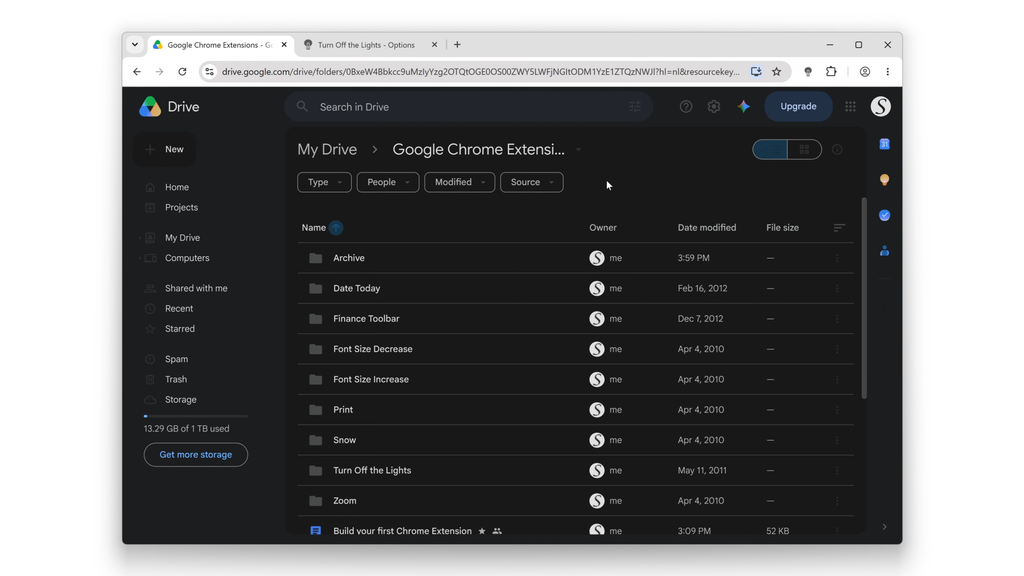
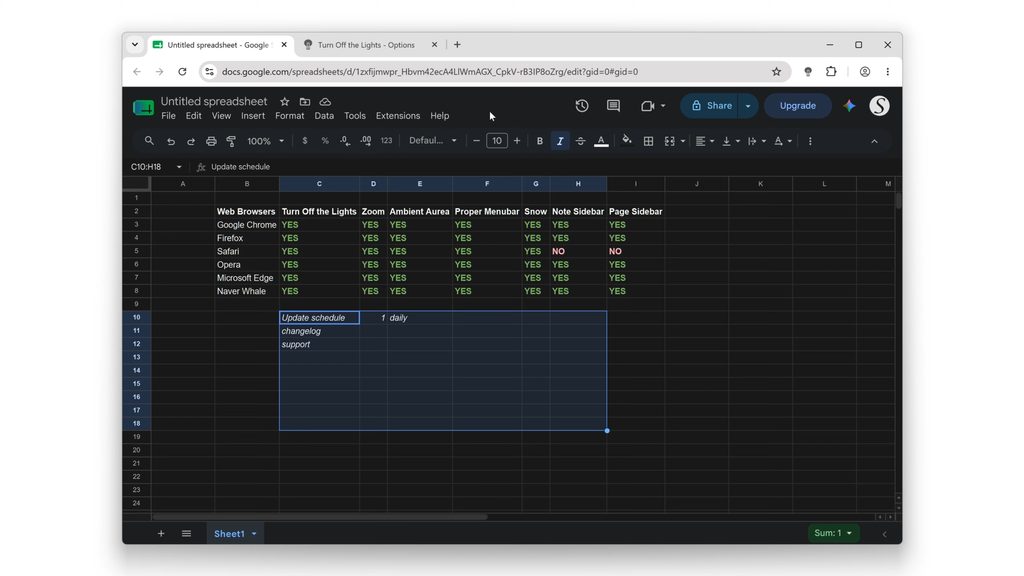
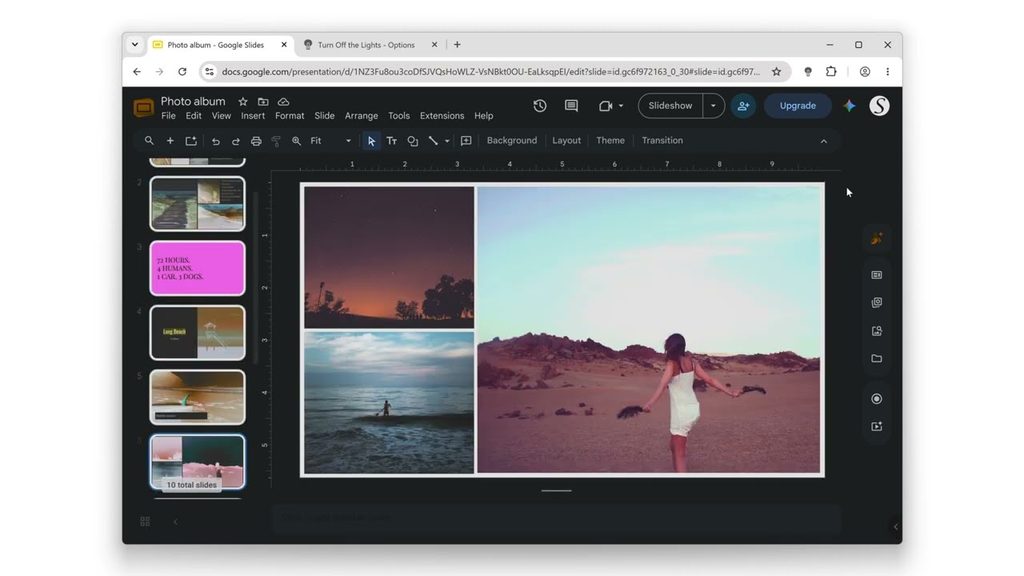
Zillow Dark Mode
Zillow Dark Mode

This makes it the perfect solution for enabling Zillow dark mode without waiting for an official update.


Step-by-Step Guide to Enable Zillow Dark Mode

Follow these simple steps to activate night mode on Zillow:


Step 1: Install the Extension

  1. Open your browser (Google Chrome is most commonly used).
  2. Visit the Chrome Web Store.
  3. Search for Turn Off the Lights.
  4. Click Add to Chrome (or your respective browser).
  5. Confirm installation.

Once installed, you will see a small lamp icon in your browser toolbar.


Step 2: Open Zillow

Go to the official Zillow website and browse any property listing.

At this stage, the site will still appear in its default bright theme.


Step 3: Enable Night Mode

  1. Click on the Turn Off the Lights lamp icon in your toolbar.
  2. Select Options.
  3. Navigate to the Night Mode tab.
  4. Toggle Automatically go to Night Mode when a new web page is opened to ON.
  5. Refresh the Zillow page.

You should now see Zillow transformed into a darker interface, effectively giving you Zillow dark mode functionality.


Customizing Your Zillow Night Mode Experience

One of the best features of Turn Off the Lights is its customization options. Here is how to optimize it:

Adjust Brightness and Contrast

You can fine-tune how dark the background becomes. This helps ensure text remains readable while reducing glare.

Whitelist or Blacklist Sites

If you only want Zillow in dark mode:

  • Go to Night Mode settings.
  • Enable dark mode only for selected websites.
  • Add Zillow.com to your list.

Color Filters

You can also apply:

  • Warm tint
  • Blue light reduction
  • Custom color themes

These settings are perfect if you’re browsing listings late at night.

Final Thoughts

If you spend hours browsing homes online, enabling Zillow dark mode can significantly improve your comfort and reduce eye fatigue. While Zillow doesn’t currently offer an official night theme, the Turn Off the Lights extension provides a simple and effective workaround.

Within minutes, you can transform the bright interface into a smooth, dark viewing experience that’s easier on your eyes — especially during nighttime browsing sessions.

Give it a try today and make your home search more comfortable than ever.

Common Questions About Zillow Dark Mode

Does Zillow Have an Official Dark Mode?

Currently, Zillow does not offer a built-in dark mode feature on its desktop website.

Is Turn Off the Lights Safe?

Yes. The browser extension has been around for years and is widely used. However, always download it from official browser stores to avoid malicious copies.
It does not require access to sensitive personal data beyond what is necessary to apply visual changes to web pages.

Alternative Ways to Enable Dark Mode

If you prefer other solutions, you can try:
Browser-level forced dark mode (Chrome flags)
System-wide dark mode settings
Other dark mode extensions
However, Turn Off the Lights offers more control and stability compared to experimental browser flags.

Will It Affect Property Photos?

No. The browser extension intelligently adjusts backgrounds while keeping images visible and clear.

About The Author

Stefan Van Damme

Focus Mode for Sensory Sensitivity Creates a Calmer Digital Experience

Focus Mode for Sensory Sensitivity is essential for users who experience visual overstimulation, including individuals with ADHD, autism spectrum conditions, or sensory processing sensitivity.

Modern websites are overwhelming:

  • Autoplay videos
  • Flashing banners
  • Moving sidebars
  • Bright UI contrasts
Focus Mode for Sensory Sensitivity

The Impact of Visual Noise

Visual clutter can cause:

  • Anxiety
  • Cognitive fatigue
  • Irritability
  • Reduced comprehension

Dimming peripheral elements lowers sensory input volume.


How Focus Mode Helps

  • Creates visual calm
  • Emphasizes primary content
  • Reduces eye strain
  • Minimizes movement distractions

It’s similar to lowering the lights in a room to create peace.


Benefits for ADHD Users

For ADHD users:

  • Single focal point improves task persistence
  • Reduced novelty reduces impulsive tab-switching
  • Structured visual field enhances comprehension

Accessibility Is Productivity

When digital environments are calmer:

  • Reading improves
  • Learning accelerates
  • Stress decreases

Accessibility tools aren’t optional.

They’re foundational.


Final Thoughts

Focus Mode for Sensory Sensitivity isn’t just about aesthetics.

It’s about mental well-being, inclusion, and sustainable productivity.

Sometimes accessibility doesn’t require redesigning the internet.

It simply requires turning off the lights around what matters.

You can get the free and Open-Source Turn Off the Lights browser extension for each web browser. These include Google Chrome, Firefox, Opera, Safari, and Microsoft Edge.

About The Author

Stefan Van Damme

Focus Mode for Streaming Immersion Transforms Gameplay

Focus Mode for Streaming Immersion helps gamers create a distraction-free, cinema-style environment while watching or streaming gameplay.

Focus Mode for Streaming Immersion

Why Immersion Matters

Immersion improves:

  • Reaction time
  • Emotional engagement
  • Viewer retention (for streamers)

Peripheral UI clutter breaks immersion.

Theater-style dimming restores it.


For Stream Viewers

Watching Twitch or YouTube streams with focus mode:

  • Reduces chat distraction
  • Minimizes side recommendations
  • Creates a cinematic feel

For Streamers

Reviewing VODs in focus mode improves:

  • Self-analysis
  • Editing precision
  • Highlight clipping

Competitive Edge

When immersion increases:

  • Attention sharpens
  • Engagement deepens
  • Session satisfaction improves

Final Takeaway

Focus Mode for Streaming Immersion bridges productivity and entertainment.

It’s not about darker screens.

It’s about deeper engagement.

You can get the free and Open-Source Turn Off the Lights browser extension for each web browser. These include Google Chrome, Firefox, Opera, Safari, and Microsoft Edge.

About The Author

Stefan Van Damme

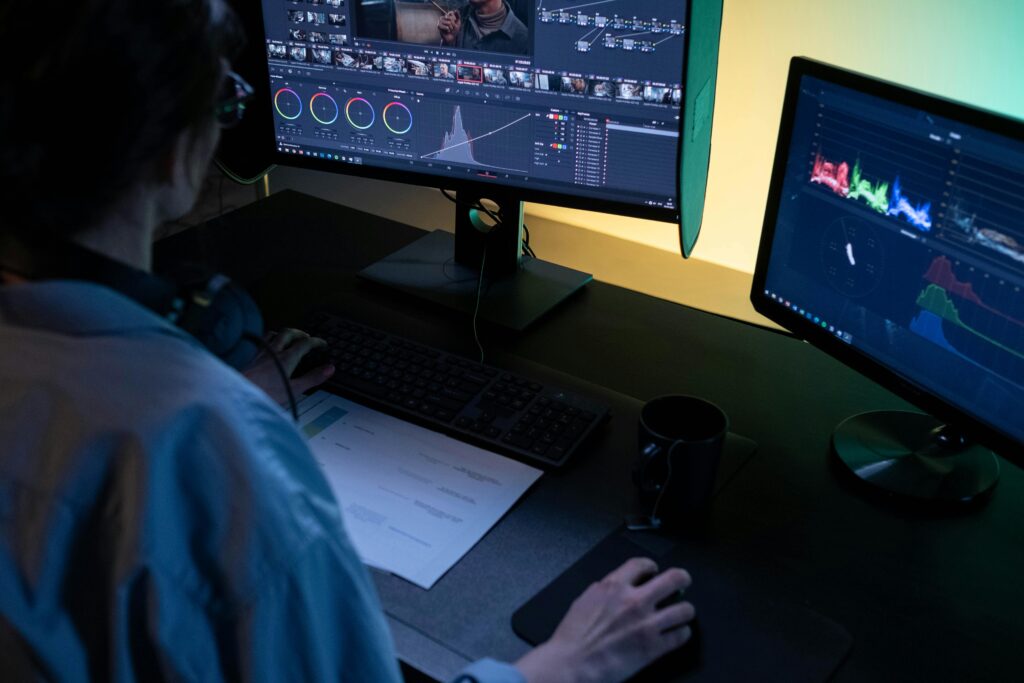
Focus Mode for Video Editing Enhances Creative Flow

Focus Mode for Video Editing is a game changer for YouTubers, filmmakers, and digital creators who need uninterrupted concentration.

Editing requires deep creative immersion. But exporting clips, reviewing drafts on YouTube, or studying references online exposes creators to endless distractions.

Video Editing

The Flow State Problem

Creative flow requires:

  • Clear goals
  • Immediate feedback
  • Zero interruptions

One suggested video thumbnail can derail 30 minutes of creative momentum.

Theater-style dimming eliminates temptation loops.


Use Cases for Creators

  • Reviewing private YouTube uploads
  • Studying competitor content
  • Watching tutorial breakdowns
  • Evaluating footage playback

Focus mode transforms YouTube into a distraction-free editing room.


Why Immersion Fuels Creativity

Creativity thrives in environments that:

  • Reduce noise
  • Emphasize primary content
  • Minimize peripheral clutter

The darker surroundings enhance perceived contrast and narrative immersion.


Creator Workflow Upgrade

  1. Upload draft video.
  2. Activate focus mode.
  3. Watch critically.
  4. Take timestamp notes.
  5. Iterate immediately.

Result:

  • Faster feedback cycles
  • Improved storytelling clarity
  • Better pacing decisions

Final Thoughts

Focus Mode for Video Editing doesn’t just protect your eyes.

It protects your creative energy.

And in the creator economy, focus equals competitive advantage.

Thereby, use the premium Turn Off the Lights for Desktop on macOS and Turn Off the Lights for Desktop on Windows to dim your computer screen, and focus on the selected application on your screen.

About The Author

Stefan Van Damme

Focus Mode for Remote Workers Is the Missing Piece of Your Home Office

Focus Mode for Remote Workers is essential for professionals who spend hours on video calls, webinars, and collaborative platforms.

Focus Mode for Remote

Remote work has many benefits, flexibility, autonomy, and reduced commuting. But it also creates new productivity challenges:

  • Endless notifications
  • Slack pop-ups
  • Email previews
  • Browser clutter
  • Multitasking temptation

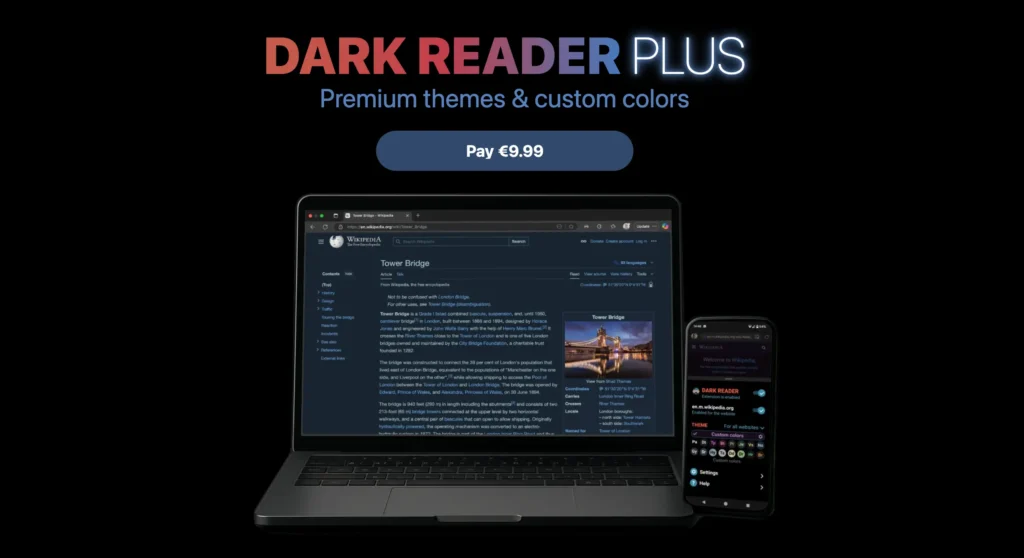
While tools like Night Eye help reduce eye strain and Dark Reader enable dark browsing, neither is built specifically to enhance concentration during video meetings.

And meetings are where focus matters most.


Why Video Calls Drain Mental Energy

Video meetings require intense cognitive processing:

  • Reading facial expressions
  • Processing speech
  • Managing self-awareness
  • Watching slides
  • Monitoring chat

Add visual clutter, and cognitive fatigue increases dramatically.

Focus Mode for Remote Workers simplifies the visual field by dimming everything except the active video or presentation.


The Psychology of Visual Minimalism

When your screen is visually simplified:

  • Decision fatigue drops
  • Task switching decreases
  • Emotional overwhelm reduces
  • Engagement increases

Theater-style dimming mimics a presentation room environment. Your brain recognizes the “spotlight effect” and assigns importance to the main content.


How to Use Focus Mode During Meetings

1. Client Calls

Remove sidebar distractions and keep your attention fully on the speaker. This improves:

  • Active listening
  • Client rapport
  • Retention of details

2. Team Meetings

Avoid multitasking temptation. When everything except the call is dimmed, it becomes psychologically harder to tab-switch.

3. Webinars & Training

Turn passive attendance into immersive learning.


Deep Work Sessions

Focus Mode for Remote Workers isn’t just for meetings.

When watching training videos, reviewing documentation, or studying dashboards, activating focus mode:

  • Reduces visual noise
  • Encourages single-tasking
  • Increases output quality

Pair it with:

  • 90-minute deep work blocks
  • Notification silencing
  • Calendar boundaries

Productivity Comparison

Tool TypeEye ComfortDistraction ReductionDeep Work Support
Standard dark modeLimited
Focus Mode for Remote Workers✔✔✔High

Home Office Optimization Tips

  • Use neutral wall backgrounds
  • Keep desk visually minimal
  • Position monitor at eye level
  • Use theater focus for digital content

Environment design = productivity multiplier.


Final Takeaway

Remote work requires intentional focus design.

Focus Mode for Remote Workers helps you:

  • Be more present in meetings
  • Produce higher-quality work
  • Reduce burnout
  • Protect cognitive energy

You can not eliminate meetings.

But you can eliminate unnecessary distractions.

You can get the free and Open-Source Turn Off the Lights browser extension for each web browser. These include Google Chrome, Firefox, Opera, Safari, and Microsoft Edge.

About The Author

Stefan Van Damme

Focus Mode for Online Learning: The Student Productivity Upgrade You Didn’t Know You Needed

Focus Mode for Online Learning is becoming essential for students who attend video lectures, watch recorded classes, and complete coursework in digital environments.

Online education offers flexibility. But it also introduces constant distractions — notifications, recommended videos, background tabs, chat messages, and visual clutter. While tools like Night Eye emphasize eye comfort and Dark Reader focuses on dark mode across websites, neither addresses one critical issue:

Students struggle with focus.

That is where a cinema-style focus experience changes everything.

Focus Mode for students

The Real Problem with Online Learning

When students open a lecture on YouTube, Vimeo, or a university portal, they’re exposed to:

  • Suggested videos
  • Sidebar distractions
  • Comment sections
  • Notifications
  • Bright surrounding UI
  • Multiple open tabs

Even small visual distractions fragment attention. Research in cognitive psychology shows that every interruption, even passive visual clutter, reduces deep focus capacity.

Students do not just need darker screens.
They need a visual environment engineered for concentration.


What Is Focus Mode for Online Learning?

Focus Mode for Online Learning dims everything around the video, transforming your browser into a theater-style environment. The video becomes the center of attention while the rest of the page fades into the background.

This creates three powerful psychological effects:

  1. Reduced cognitive load
  2. Improved visual hierarchy
  3. Increased immersion

Instead of fighting your environment, your environment supports your learning.


Why Theater-Style Focus Improves Retention

When distractions are removed:

  • Students watch lectures longer without checking their phones.
  • Note-taking improves.
  • Multitasking decreases.
  • Retention increases.

Unlike generic dark mode tools, theater focus doesn’t just change colors — it changes attention direction.

It’s similar to being in a physical classroom where lights dim and all attention shifts to the projector.


How Students Can Use Focus Mode Effectively

1. During Live Online Classes

When attending Zoom recordings or streaming lectures:

  • Activate focus mode immediately.
  • Close unrelated tabs.
  • Silence notifications.
  • Use full-screen or theater view.

This creates a “digital classroom” effect.

2. While Watching Recorded Lectures

Recorded content is even more vulnerable to distraction. Suggested videos are designed to capture attention.

Focus mode:

  • Hides the temptation.
  • Reduces visual noise.
  • Keeps your brain anchored to the task.

3. During Study Sessions

Many students use ambient study videos or recorded lessons while reviewing notes. A dimmed browser prevents wandering attention.


Focus Mode and ADHD Students

Students with ADHD often struggle with visual overstimulation. A theater-style dimming effect:

  • Minimizes competing stimuli
  • Reduces peripheral movement
  • Creates a single-point focus anchor

Instead of forcing attention through willpower, the environment does the work.


Focus Mode vs Dark Mode

FeatureDark Mode ToolsFocus Mode for Online Learning
Changes background color
Removes distractions
Creates immersion
Improves lecture retentionLimitedHigh
Cinema-style experience

Dark mode protects your eyes.
Focus mode protects your attention.


Study Workflow Example

Here’s a practical system:

  1. Open your lecture.
  2. Activate focus mode.
  3. Put phone in another room.
  4. Take handwritten notes.
  5. Pause every 20 minutes to summarize.

Students who build this ritual report:

  • Less procrastination
  • Higher comprehension
  • Shorter study time

Why This Matters More Than Ever

Education is increasingly digital.

The average student spends 6–10 hours per day on screens. Without intentional visual control, attention gets hijacked constantly.

The solution isn’t more discipline.
It is better design.

Focus Mode for Online Learning transforms your browser from a distraction machine into a productivity environment.


Final Thoughts

If you’re serious about improving grades, reducing stress, and actually absorbing your lectures, Focus Mode for Online Learning is a small change that delivers disproportionate results.

Your brain wasn’t designed for 15 open tabs and flashing notifications.

But it thrives in a focused environment.

And sometimes, the most powerful productivity upgrade is simply turning off the lights.

You can get the free and Open-Source Turn Off the Lights browser extension for each web browser. These include Google Chrome, Firefox, Opera, Safari, and Microsoft Edge.

About The Author

Stefan Van Damme

Screen Glare Reduction: The Science Behind Reducing Digital Eye Strain

Screen Glare Reduction is one of the most effective ways to improve digital comfort in today’s screen-dominated world. Whether you work on a computer all day, study online, or browse at night, excessive glare can cause eye fatigue, headaches, and visual discomfort. Screen Glare Reduction is not just about aesthetics, it is backed by visual science, ergonomics research, and ophthalmology recommendations.

Screen Glare Reduction

Modern displays are brighter than ever. While brightness improves visibility in daylight, it can become harmful when mismatched with your environment. Understanding how glare works helps explain why reducing it makes such a dramatic difference.


What Is Screen Glare?

Glare occurs when excessive or uncontrolled light enters the eye, reducing contrast and forcing the visual system to work harder.

There are two main types:

1. Direct Glare

Light emitted directly from the screen at high brightness levels.

2. Reflected Glare

Light bouncing off the screen surface from windows, lamps, or overhead lighting.

Both forms increase visual strain and decrease comfort.

When glare is present, your pupils constantly adjust in response to changing brightness levels. This repeated adaptation leads to muscular fatigue in the iris and focusing muscles.


The Visual Science Behind Glare and Eye Fatigue

The human eye is designed to adapt gradually to lighting changes in natural environments. Digital screens disrupt this balance by introducing:

  • High luminance levels
  • Strong white backgrounds
  • Sharp contrast differences
  • Flicker (even if imperceptible)

Research in visual ergonomics shows that high luminance contrast increases accommodative demand — meaning your eye muscles must work harder to maintain focus.

Over time, this leads to:

  • Eye strain
  • Dryness
  • Blurred vision
  • Headaches
  • Reduced concentration

Screen Glare Reduction works by lowering these stress triggers.


Why White Backgrounds Increase Strain

Many websites use bright white backgrounds with dark text. While readable, this design produces high luminance output.

In low-light environments, this creates extreme contrast between the screen and surroundings.

Your pupils constrict when looking at the bright screen and dilate when looking away. This constant fluctuation increases visual workload.

Dark mode and brightness control reduce this extreme luminance difference, supporting Screen Glare Reduction.


The Role of Blue Light in Glare Perception

Blue wavelengths scatter more inside the eye than longer wavelengths like red or orange.

This scattering effect reduces image clarity and increases perceived brightness.

When blue light intensity is high:

  • Contrast sensitivity decreases
  • Light appears harsher
  • Sensitivity increases

By lowering blue light output and reducing brightness, Screen Glare Reduction minimizes this internal scattering effect.


Research Supporting Screen Glare Reduction

Studies in occupational health have found that employees exposed to excessive screen brightness report:

  • Higher rates of digital eye strain
  • Increased headaches
  • Lower productivity

Ergonomic guidelines recommend that screen luminance should match surrounding lighting levels as closely as possible.

When luminance balance improves:

  • Blink rate increases
  • Muscle tension decreases
  • Visual clarity improves
  • Comfort duration extends

This is why proper brightness calibration and dark mode implementation are scientifically supported.


How Dark Mode Contributes to Screen Glare Reduction

Dark mode is one of the most practical tools for Screen Glare Reduction.

Here’s why:

Lower Luminance Output

Dark backgrounds emit less total light energy.

Reduced Contrast Shock

Instead of bright white dominating the display, light elements are balanced against darker surroundings.

Improved Nighttime Comfort

In low-light settings, dark mode prevents extreme pupil constriction.

While dark mode may not be ideal in every lighting condition, it significantly enhances comfort in dim environments.


Environmental Factors That Increase Glare

Screen settings are only part of the equation. Your environment matters just as much.

Common glare contributors include:

  • Overhead LED lights
  • Direct sunlight through windows
  • Glossy screen surfaces
  • Using screens in completely dark rooms

For optimal Screen Glare Reduction:

  • Position screens perpendicular to windows
  • Use indirect lighting
  • Adjust brightness to match room conditions
  • Avoid maximum brightness unless necessary

Balanced lighting reduces strain dramatically.


Screen Glare and Productivity

Excessive glare does not just cause discomfort — it reduces performance.

When the eyes are fatigued:

  • Reading speed decreases
  • Focus shortens
  • Error rates increase
  • Mental fatigue rises

Studies in workplace ergonomics show that improving lighting and reducing glare improves both comfort and efficiency.

Comfortable vision allows sustained cognitive performance.


The Connection Between Glare and Dry Eye

Glare often causes users to squint, which reduces blinking frequency.

Reduced blinking leads to:

  • Tear film instability
  • Surface irritation
  • Increased light sensitivity

By lowering brightness and glare intensity, Screen Glare Reduction supports healthier blinking patterns.


Practical Screen Glare Reduction Strategy

Here is a realistic daily approach:

  1. Adjust screen brightness to match ambient light
  2. Enable dark mode in low-light conditions
  3. Increase text size to reduce squinting
  4. Use matte screen protectors if needed
  5. Take 20-second breaks every 20 minutes
  6. Keep screens about an arm’s length away

Small adjustments prevent long-term strain accumulation.


Is Maximum Brightness Ever Necessary?

High brightness is appropriate outdoors or in bright office environments.

However, using maximum brightness in dim settings significantly increases glare and visual stress.

Automatic brightness settings can help, but manual adjustment often provides better control.

The goal of Screen Glare Reduction is balance — not constant dimness.


Long-Term Benefits of Managing Glare

Consistent Screen Glare Reduction can lead to:

  • Fewer headaches
  • Reduced digital eye strain
  • Better nighttime comfort
  • Improved sleep readiness
  • Greater productivity

These benefits compound over time.

Instead of reacting to discomfort, proactive glare management prevents it.


Final Thoughts

Screen Glare Reduction is a foundational strategy for protecting digital eye health. In a world where screens are unavoidable, optimizing brightness, reducing contrast shock, and minimizing glare intensity are essential habits.

Scientific research supports what many users already feel — bright, high-contrast screens create unnecessary visual stress.

By implementing Screen Glare Reduction techniques such as dark mode, brightness calibration, and environmental adjustments, you create a more sustainable and comfortable digital experience.

Thereby, you can use the free Turn Off the Lights browser extension to dim the web page. Or use the premium Turn Off the Lights for Desktop on macOS and Turn Off the Lights for Desktop on Windows to dim your computer screen.

When your eyes work less, you feel better, focus longer, and protect your long-term visual health.

About The Author

Stefan Van Damme

Photophobia and Screen Sensitivity: Why Bright Screens Trigger Migraines

Photophobia and Screen Sensitivity affect millions of people who struggle with bright lights, digital glare, and high-contrast displays. If you’ve ever felt eye pain, squinting discomfort, or migraine symptoms when looking at a bright screen, you are not imagining it. Photophobia and Screen Sensitivity are medically recognized conditions with neurological and ophthalmological explanations.

Modern digital environments, dominated by white backgrounds, LED lighting, and high brightness displays, can intensify symptoms dramatically.

Photophobia and Screen Sensitivity

Understanding the science behind light sensitivity is the first step toward reducing it.


What Is Photophobia?

Photophobia does not mean a fear of light. It refers to an abnormal intolerance to light that causes discomfort or pain.

It is commonly associated with:

  • Migraines
  • Concussions
  • Dry eye syndrome
  • Corneal abrasions
  • Uveitis
  • Computer Vision Syndrome

People with Photophobia and Screen Sensitivity often describe symptoms such as:

  • Eye strain
  • Burning sensations
  • Headaches
  • Blurred vision
  • Nausea (in migraine cases)

Digital screens can worsen all of these symptoms.


Why Bright Screens Trigger Discomfort

Screens emit light directly into the eyes. Unlike ambient room lighting, screen light is concentrated and viewed at close range.

Three major factors contribute to Photophobia and Screen Sensitivity:

1. High Luminance

Most screens are designed for visibility in bright environments. When used indoors or in dark rooms, they are often excessively bright relative to surroundings.

This contrast forces the pupils to constrict repeatedly, creating muscular fatigue.

2. Glare and Contrast

White backgrounds on websites create extreme contrast against darker environments.

High contrast forces the visual system to constantly adjust. This repeated adaptation increases neurological strain.

3. Blue Light Intensity

Blue wavelengths scatter more easily inside the eye. This scattering reduces visual clarity and increases sensitivity in individuals already prone to discomfort.


Photophobia and Screen Sensitivity are especially common among migraine sufferers.

Research shows that during a migraine:

  • The trigeminal nerve becomes activated
  • The brain’s visual cortex becomes hypersensitive
  • Light processing pathways become overstimulated

Even low-to-moderate light exposure can amplify pain signals.

This explains why many migraine sufferers prefer dark rooms during episodes.

Bright digital screens can act as both triggers and amplifiers.


Photophobia in Post-Concussion and Brain Injury Patients

After concussions or mild traumatic brain injuries, light sensitivity is one of the most common lingering symptoms.

The brain’s ability to regulate sensory input becomes temporarily impaired.

Screens — especially those with flicker, glare, and high brightness — overload the healing visual system.

Reducing screen luminance and contrast is often recommended during recovery.


How Dark Mode Reduces Photophobia and Screen Sensitivity

Dark mode can significantly reduce symptoms of Photophobia and Screen Sensitivity by altering how light is delivered to the eyes.

Here’s how:

Lower Overall Brightness

Dark backgrounds emit less total light energy. This reduces the intensity entering the retina.

Reduced Glare

Glare occurs when excessive light scatters across the eye’s surface. Dark mode minimizes glare by reducing high-intensity white areas.

Improved Contrast Comfort

While contrast still exists, dark mode often feels less harsh because bright elements are surrounded by darker tones instead of full-screen brightness.

For many users with Photophobia and Screen Sensitivity, this shift alone can make screens tolerable.


Lighting Environment Matters

Screen adjustments alone are not enough. The surrounding lighting environment influences symptoms significantly.

To reduce Photophobia and Screen Sensitivity:

  • Avoid using screens in completely dark rooms
  • Use soft, indirect lighting
  • Match screen brightness to room lighting
  • Avoid overhead LED lights at night

Balanced lighting prevents extreme pupil dilation and contraction cycles.


Dry Eye and Light Sensitivity

Dry eye syndrome often overlaps with Photophobia and Screen Sensitivity.

When tear film evaporates:

  • The eye surface becomes irritated
  • Light scatters more irregularly
  • Discomfort increases

Since screen use reduces blinking frequency, dry eye symptoms intensify during prolonged digital sessions.

Combining dark mode with conscious blinking and regular breaks helps maintain tear stability.


Professional Recommendations

Ophthalmologists and neurologists often suggest:

  • Reducing screen brightness
  • Increasing text size to reduce squinting
  • Using matte screen protectors
  • Taking frequent breaks
  • Adjusting contrast settings
  • Using dark mode in low-light conditions

These strategies do not eliminate Photophobia and Screen Sensitivity but can dramatically lower daily discomfort.


Who Benefits Most from Screen Dimming?

Dark mode and screen dimming are particularly helpful for:

  • Migraine sufferers
  • Remote workers spending 8+ hours online
  • Gamers exposed to bright flashes
  • Students studying at night
  • Individuals recovering from concussions
  • People with chronic dry eye

Customizing screen brightness is not just about aesthetics — it’s about neurological comfort.


Are There Limitations to Dark Mode?

Dark mode may not be ideal in brightly lit environments where readability decreases. In such cases, adjusting brightness rather than fully switching themes may be more effective.

Personal comfort should guide decisions.

The goal is reducing unnecessary visual stress.


Practical Strategy to Manage Photophobia and Screen Sensitivity

Here is a realistic daily approach:

  1. Lower brightness to match room lighting
  2. Enable dark mode in the evening
  3. Increase text size to reduce squinting
  4. Position screens slightly below eye level
  5. Follow the 20-20-20 rule
  6. Maintain proper hydration for tear production

Consistency matters more than intensity.

Small adjustments create meaningful relief over time.


Final Thoughts

Photophobia and Screen Sensitivity are not minor inconveniences, they are real physiological responses to excessive or poorly managed light exposure.

Modern screens are brighter and more contrast-heavy than ever before. Without adjustments, they can strain both the eyes and the brain.

By reducing glare, lowering brightness, and enabling dark mode when appropriate, users can significantly decrease discomfort, migraine triggers, and digital fatigue.

Understanding Photophobia and Screen Sensitivity empowers individuals to create a more comfortable digital experience, one that supports both visual health and neurological well-being.

Thereby, you can use the free Turn Off the Lights browser extension to dim the web page. Or use the premium Turn Off the Lights for Desktop on macOS and Turn Off the Lights for Desktop on Windows to dim your computer screen.

About The Author

Stefan Van Damme

Blue Light and Sleep Disruption: The Hidden Impact of Screen Exposure

Blue Light and Sleep Disruption have become increasingly linked as screen usage rises across all age groups. If you scroll your phone at night, watch videos in bed, or work late on a laptop, you may be unknowingly interfering with your body’s natural sleep cycle. Blue Light and Sleep Disruption are not marketing myths, they are backed by biological and neurological science.

To understand the impact, we need to look at how light influences the brain.

Blue Light and Sleep Disruption

The Science of Blue Light and the Circadian Rhythm

Your body operates on a 24-hour internal clock known as the circadian rhythm. This biological system regulates:

  • Sleep and wake cycles
  • Hormone production
  • Body temperature
  • Alertness levels

Light is the primary signal that controls this clock.

Blue light, specifically high-energy visible (HEV) light in the 400–490 nanometer range, has the strongest effect on circadian regulation. During the day, blue light exposure is beneficial. It increases attention, boosts mood, and enhances cognitive performance.

However, at night, blue light becomes disruptive.

When your eyes detect blue light after sunset, your brain interprets it as daytime. This delays the release of melatonin — the hormone responsible for making you feel sleepy.

The result? Blue Light and Sleep Disruption.


How Screens Suppress Melatonin Production

Melatonin production typically begins 2–3 hours before bedtime. This gradual increase prepares your body for rest.

When you use devices such as:

  • Smartphones
  • Tablets
  • Laptops
  • LED monitors

You expose your eyes to concentrated blue light at close range.

Research shows that even two hours of evening screen exposure can significantly reduce melatonin levels. Lower melatonin means:

  • Difficulty falling asleep
  • Reduced REM sleep
  • Shortened total sleep duration
  • Poorer sleep quality

This is why you may feel tired but mentally alert after scrolling at night.


Why Blue Light at Night Is More Harmful Than Daytime Exposure

Daytime blue light is balanced by natural environmental cues. Sunlight gradually fades, signaling your brain to wind down.

Artificial lighting and screens override this natural pattern.

At night:

  • Pupils are dilated in darker environments
  • Blue light penetrates more intensely
  • There are no competing daylight signals

This combination amplifies Blue Light and Sleep Disruption.

Even small amounts of blue light can delay sleep onset by 30–60 minutes.


The Sleep Quality Consequences

Blue Light and Sleep Disruption do more than just delay bedtime. Chronic exposure can affect long-term health.

Poor sleep is associated with:

  • Increased stress levels
  • Reduced cognitive performance
  • Weakened immune function
  • Higher risk of anxiety and depression
  • Metabolic imbalances

Sleep specialists emphasize that consistent circadian misalignment can compound over time.

It’s not just about feeling groggy — it’s about overall health optimization.


The Role of Dark Mode in Reducing Blue Light and Sleep Disruption

One practical solution for minimizing Blue Light and Sleep Disruption is using dark mode and screen dimming tools.

Dark mode works by:

  • Reducing overall screen luminance
  • Lowering blue light intensity
  • Minimizing glare contrast
  • Decreasing retinal stimulation

While dark mode does not eliminate blue light entirely, it significantly reduces exposure intensity — especially when combined with reduced brightness settings.

Lower brightness means less stimulation of the intrinsically photosensitive retinal ganglion cells (ipRGCs), the cells responsible for signaling light exposure to the brain’s circadian center.

The result is a reduced suppression of melatonin.


How Lighting Conditions Influence Sleep Readiness

It’s not just screens — overall lighting conditions matter.

Bright indoor LED lighting at night can contribute to Blue Light and Sleep Disruption even without device use.

For optimal sleep hygiene:

  • Dim lights 1–2 hours before bed
  • Avoid overhead LED lighting
  • Use warmer light temperatures
  • Enable dark mode on devices
  • Reduce screen brightness to match ambient light

These environmental adjustments create a smoother biological transition into sleep.


Expert Perspectives on Evening Screen Use

Sleep researchers and ophthalmologists commonly recommend:

  • Avoiding screens at least 60 minutes before bed
  • Using blue light filtering tools
  • Keeping devices out of the bedroom
  • Following consistent sleep schedules

However, in reality, many people cannot eliminate nighttime screen use due to work or lifestyle habits.

That’s why mitigation strategies — like dark mode and brightness control — are practical and effective solutions.

The goal is reduction, not perfection.


Blue Light and Sleep Disruption in Different Age Groups

Children and teenagers are particularly vulnerable.

Younger eyes:

  • Have clearer lenses
  • Transmit more blue light
  • Are more sensitive to circadian shifts

Evening gaming or social media use has been directly associated with later bedtimes and reduced academic performance.

Adults are not immune either. Remote workers and shift workers often experience circadian rhythm disturbances from late-night device exposure.

Understanding Blue Light and Sleep Disruption allows families and professionals to make informed adjustments.


Is Blue Light the Only Problem?

While blue light plays a significant role, cognitive stimulation also contributes to sleep delays.

Social media scrolling, gaming, and work emails activate the brain emotionally and mentally. This alertness compounds the biological effects of blue light.

That’s why a combined strategy works best:

  • Reduce blue light exposure
  • Lower brightness
  • Limit stimulating activities before bed

Practical Nighttime Digital Hygiene Strategy

Here is a realistic routine to minimize Blue Light and Sleep Disruption:

  1. Activate dark mode after sunset
  2. Lower screen brightness below 50%
  3. Use warm display settings if available
  4. Dim room lighting gradually
  5. Stop high-engagement content 30 minutes before sleep

These small changes can significantly improve sleep latency and overall rest quality.


Final Thoughts

Blue Light and Sleep Disruption are deeply connected through circadian biology and melatonin regulation. While screens are an unavoidable part of modern life, unmanaged nighttime exposure can negatively affect sleep health.

The good news is that simple adjustments — such as enabling dark mode, reducing brightness, and improving lighting conditions — can dramatically reduce the impact.

Understanding the science empowers you to take control of your digital habits rather than letting them control your sleep.

If better sleep is the goal, managing Blue Light and Sleep Disruption is one of the most effective places to start.

Thereby, you can use the free Turn Off the Lights browser extension to dim the web page. Or use the premium Turn Off the Lights for Desktop on macOS and Turn Off the Lights for Desktop on Windows to dim your computer screen.

About The Author

Stefan Van Damme

Computer Vision Syndrome in the Digital Age

Computer Vision Syndrome is a growing condition affecting remote workers, gamers, students, and office professionals. If you spend more than 2-3 hours daily on screens, you may already have mild Computer Vision Syndrome without realizing it.

Computer Vision Syndrome

Let us explore why.


What Is Computer Vision Syndrome?

Computer Vision Syndrome (CVS) refers to eye and vision-related problems caused by prolonged digital device use.

Common symptoms include:

  • Eye fatigue
  • Blurred vision
  • Dryness
  • Headaches
  • Neck and shoulder pain

The root cause is sustained close-up focus combined with glare and poor lighting conditions.


Why Screens Are Harder on Eyes Than Books

Unlike printed text:

  • Digital screens flicker
  • Pixels lack sharp definition
  • Brightness contrasts are extreme
  • Blue light emission is constant

Your eyes constantly refocus to interpret digital content. Over time, this leads to muscular strain.


The Role of Lighting Conditions

Lighting conditions dramatically affect Computer Vision Syndrome severity.

Problems arise when:

  • Screen brightness exceeds room lighting
  • You use screens in dark rooms
  • There’s overhead glare
  • There’s high contrast (white background on black surroundings)

Dark mode reduces this contrast imbalance.


How Dark Mode Helps Computer Vision Syndrome

Dark mode:

  • Reduces glare intensity
  • Lowers luminance levels
  • Minimizes pupil constriction cycles
  • Helps eyes maintain comfort longer

While it isn’t a cure, it significantly reduces symptom severity.


The 20-20-20 Rule and Environmental Adjustments

Experts recommend:

  • Every 20 minutes, look 20 feet away for 20 seconds
  • Keep screens 20–28 inches from eyes
  • Use anti-glare settings
  • Match brightness to ambient lighting

Combining these practices with dark mode produces optimal results.


Long-Term Risks

If unmanaged, Computer Vision Syndrome can:

  • Increase migraine frequency
  • Reduce productivity
  • Cause chronic dry eye

Preventative adjustments are essential.


Conclusion

Computer Vision Syndrome is the price of digital convenience, but it does not have to be permanent. Adjusting brightness, reducing glare, and using dark mode tools can dramatically improve eye comfort.

Thereby, you can use the free Turn Off the Lights browser extension to dim the web page. Or use the premium Turn Off the Lights for Desktop on macOS and Turn Off the Lights for Desktop on Windows to dim your computer screen.

About The Author

Stefan Van Damme