
Table of Contents
Want to use Google Slides with a darker, more comfortable interface? With the free Turn Off the Lights browser extension, you can enable Google Slides Dark Mode directly in your web browser.
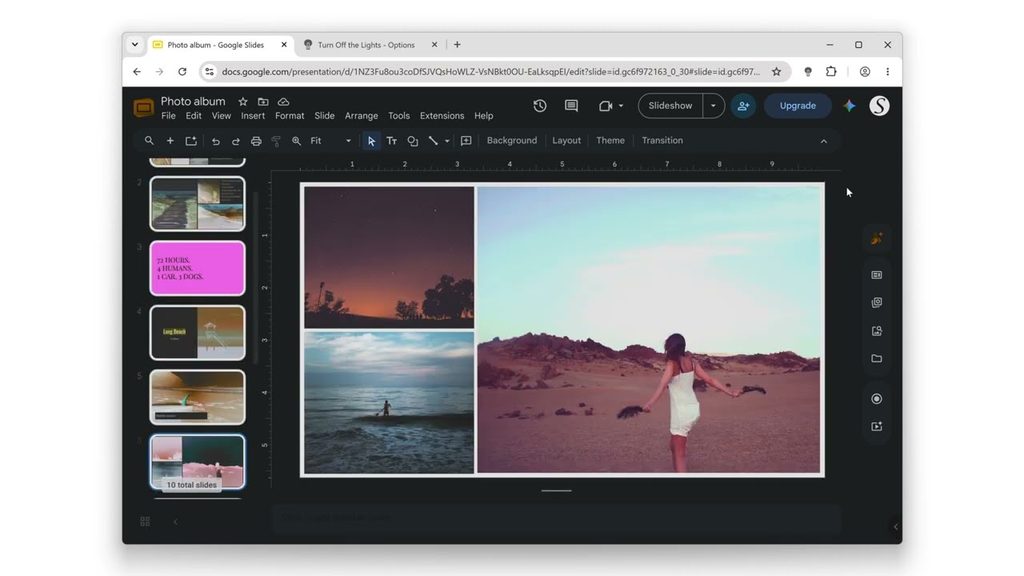
This is especially useful when you’re creating or reviewing presentations at night, working in a dark environment, or simply prefer a darker interface instead of the bright white Google Slides design.
Turn Off the Lights provides two Night Mode engines you can use for Google Slides:
- Personalized Theme — customize the background, text, links, buttons, and other colors to create your own preferred dark theme.
- Standard Theme — automatically transforms the webpage into a dark theme using a simple, ready-to-use solution.
Best of all, Turn Off the Lights is free and open-source, and the Night Mode feature works across supported browsers and websites.
Tutorial Video on enabling Google Slides Dark Mode
Step 1: Install the free Turn Off the Lights browser extension
First, install the Turn Off the Lights browser extension in your favorite web browser.
The extension is available for popular browsers including Google Chrome, Microsoft Edge, Firefox, Safari, Opera, and others.
After installation, you should see the gray lamp button in your browser toolbar.
Now open Google Slides and load the presentation you want to work on.
Step 2: Open the Night Mode settings
Right-click the gray Turn Off the Lights lamp button in your browser toolbar and select Options.
On the Turn Off the Lights Options page, select the Night Mode tab.
Here you can enable the Night Mode feature and choose how you want Google Slides to look in the dark.
Turn Off the Lights gives you two different Night Mode engines:
Personalized Theme
Choose this option when you want complete control over your Google Slides dark theme.
You can customize colors such as the background and text to create a dark appearance that matches your preferences. This is a great choice if you want something more personal than a standard black theme.
Standard Theme
Choose the Standard Theme when you want a quick and simple dark mode.
The Standard Theme automatically applies a dark appearance to webpages, making it an easy option when you don’t want to manually configure colors. The extension’s current Standard Theme uses a CSS filter-based approach designed to support websites broadly.
Step 3: Enable Dark Mode in Google Slides
Return to your Google Slides presentation and activate the Night Mode switch.
Google Slides will now appear in a darker theme, helping reduce the amount of bright white light coming from the webpage.
You can switch between the Personalized Theme and Standard Theme to find the appearance you prefer.
When you’re finished working, simply disable the Night Mode switch to return to the normal Google Slides appearance.
Why use Google Slides Dark Mode?
A darker interface can be more comfortable when working on presentations in the evening or in low-light environments. Turn Off the Lights also lets you customize your Night Mode experience instead of being limited to a single predefined color scheme.
The extension is designed as a free, open-source browser extension and provides Night Mode across many websites, including Google services such as Google Slides.
Quick summary
1. Install the free Turn Off the Lights browser extension.
2. Open Options → Night Mode and choose Personalized Theme or Standard Theme.
3. Enable the Night Mode switch while using Google Slides.
That’s it! You can now enjoy Google Slides Dark Mode for free with Turn Off the Lights.
Did you find technical, factual or grammatical errors on the Turn Off the Lights website?
You can report a technical problem using the Turn Off the Lights online technical error feedback form.
