
Table of Contents
Introduction
You install for the first time the Turn Off the Lights browser extension, then it shows you only one time the welcome page. But if you see that same web page back if you open your browser again. So are you wondering how to stop showing the welcome page again? It is possible that your settings are damaged or you did remove the “Local store” files (removed by CC-cleaner, Cocktail, or another program) on your computer. Turn Off the Lights browser extension save the settings in the local store information files just like all the other extensions.
What is a welcome page?
A welcome page, often referred to as a homepage or landing page, is the initial web page that visitors encounter when they access a website. It serves as the entry point to the website and is typically designed to provide users with an introduction to the site’s content, navigation options, and purpose.
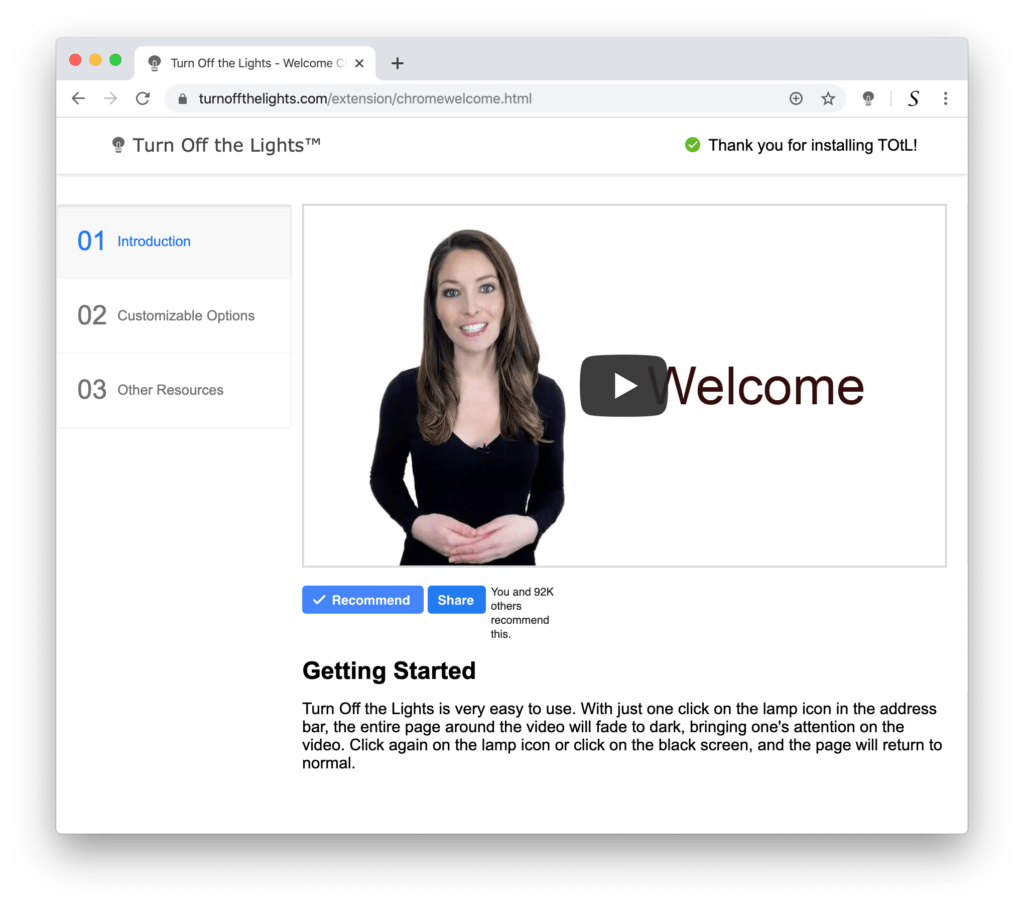
Here for the Turn Off the Lights browse extension you will be greeted with a hello video, and then a few video tutorials on how to enable a certain feature in your just-installed browser extension. Such as how to enable the Night Mode feature to get all my favorite websites in my owner dark mode theme. Or how to enable the mouse volume scroll, so I can control the audio level instantly with a scroll on my mouse wheel.
Tips to stop showing the welcome page
If you still seeing it and want to stop showing the welcome page. Then make sure you use the latest version of the Safari browser and the Turn Off the Lights extension installed.
Safari Mac
For Safari Mac do not remove the files inside this folder:
Home/Library/Safari/Local Storage/
Safari Windows
For Safari Windows do not remove the files inside this folder:
C:\Users\YOUNAME\AppData\Local\Apple Computer\Safari\LocalStorage
Google Chrome
For Google Chrome users you install possible an extension or extern software that removes our settings files each time you open or run that cleaner program. In addition, you can find out what extension creates this problem, that by disabling the extension you are using one by one on this page:
chrome://extensions/
Also, check that you don’t remove the local storage on this folder:
C:\Users\YOURNAME\AppData\Local\Google\Chrome\User Data\Default\Local Extension Settings
Opera
For the Opera web browser, you can find it in this location:
C:\Users\YOURNAME\AppData\Local\Opera\Opera\widgets\
FAQ about stop showing the welcome page
How can I stop showing the welcome page?
Can I sync my settings to my other computers?
Can I sync my settings with other companies’ web browsers?
Will you stop showing the welcome page for each update?
Did you find technical, factual or grammatical errors on the Turn Off the Lights website?
You can report a technical problem using the Turn Off the Lights online technical error feedback form.
