
Table of Contents
Introduction
Here is an overview of how you can enable FB website dark mode, which converts the current bright website to a darker tint.
Introduction
In the ever-evolving realm of social media, Facebook continues to innovate. One such feature captivating users worldwide is FB dark mode. This article unveils the intricacies of this trend, shedding light on its perks, activation steps, and addressing common queries.
Benefits of FB Dark Mode
Enhance your browsing experience with these FB dark mode advantages.
Reduced Eye Strain
Immerse yourself in a visually soothing experience, as FB dark mode minimizes eye strain during prolonged social media sessions. The darker interface contributes to a comfortable viewing environment, especially in low-light conditions.
Battery Conservation
Witness prolonged battery life as FB dark mode conserves energy on devices with OLED or AMOLED screens. The reduced brightness of dark mode translates into decreased power consumption, allowing for extended usage between charges.
Stylish Interface
Indulge in a sleek and modernized FB interface. Dark mode adds a touch of sophistication to your social media interactions, providing a stylish alternative to the conventional light mode.
How to turn on the FB Dark Mode website?
Currently, in written of this help page is the Facebook website still no option available to enable the Dark Mode feature. However, you can use the Turn Off the Lights Browser extension to get the best dark mode experience in your web browser.
How to turn on FB Dark Mode on Mobile? (iOS/Android)
From your iOS and Android phone, you can enable the Facebook Dark Mode. With the following steps.
- Open your Facebook for Mobile app
- Go to the Settings page
- Tap General and select the item Theme
- Here you can choose from the list your dark theme. The best dark mode is the AMOLED theme
How to turn dark mode on other websites? (Desktop web browser)
However, you can also use the free and useful Turn Off the Lights browser extension to convert all websites to your own personal color choice. So as you can see on this Facebook web page.
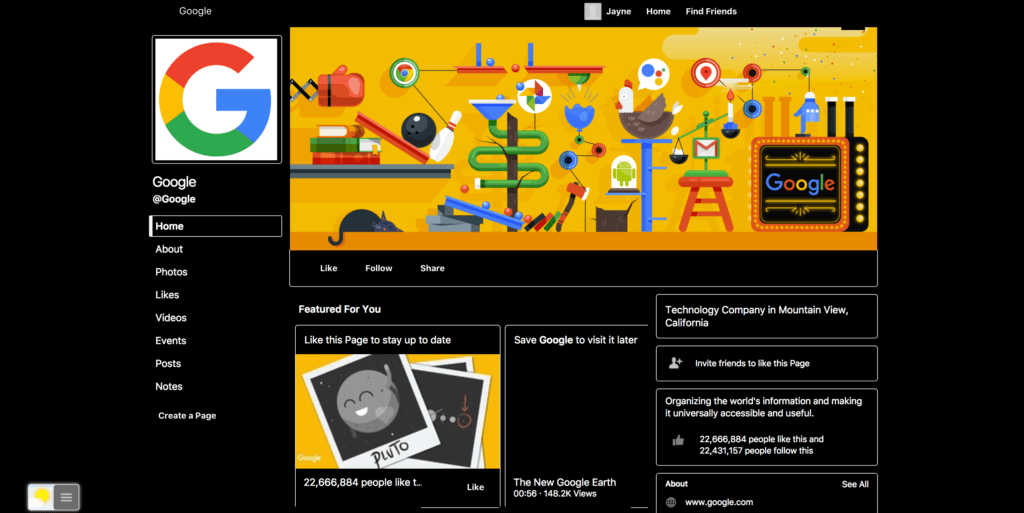
Follow the steps below on how you can get your customized night theme enabled.
- Install the Turn Off the Lights Browser extension
- Click right on the gray lamp button, and select from the context menu the Item Options
- From the sidebar, click on the tab Night Mode
- And enable the checkbox to activate the Night Mode feature on all websites
- Below this option, you can choose the color for the background, text, and hyperlinks.
Conclusion
In conclusion, Facebook Dark Mode is more than a visual revamp; it’s a user-centric evolution. Enhancing aesthetics, reducing eye strain, and offering customization options, this feature represents a significant stride in social media innovation.
FAQ
Is FB Dark Mode Available for All Devices?
Can FB Dark Mode Conserve Battery on All Devices?
Does FB Dark Mode Affect App Performance?
How Often Should I Use Facebook Dark Mode?
Can I Schedule Facebook Dark Mode?
Are There Accessibility Concerns with Facebook Dark Mode?
Did you find technical, factual or grammatical errors on the Turn Off the Lights website?
You can report a technical problem using the Turn Off the Lights online technical error feedback form.
