Table of Contents
Want to use Google Sheets with a darker interface while working on your computer? With the free Turn Off the Lights browser extension, you can enable Google Sheets Dark Mode directly in your web browser.
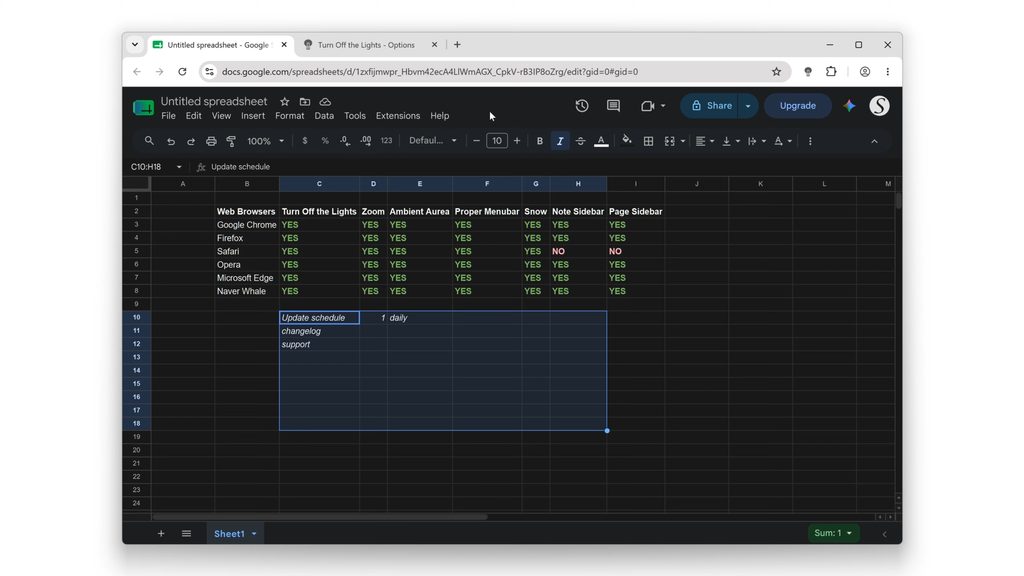
Whether you’re working late at night, using Google Sheets in a low-light environment, or simply prefer a darker interface, Turn Off the Lights gives you an easy way to transform the bright Google Sheets interface into a more comfortable dark theme.
Turn Off the Lights provides two Night Mode engines:
- Personalized Theme — create your own dark theme by customizing colors such as the background and text.
- Standard Theme — automatically transforms the webpage into a dark appearance without requiring you to manually customize the colors.
The extension is free and open-source and supports major browsers including Chrome, Firefox, Microsoft Edge, Safari, and Opera.
Video Tutorial on how to enable Google Sheets Dark Mode
Step 1: Install the free Turn Off the Lights browser extension
First, install the Turn Off the Lights browser extension in your preferred web browser.
The extension is available for major desktop browsers, so you can choose the version that matches your browser.
After installing it, open Google Sheets and load the spreadsheet you want to use.
You should see the Turn Off the Lights lamp icon in your browser toolbar. The extension can apply Night Mode to Google services, including Google Sheets.
Step 2: Open the Night Mode settings
Next, open the Turn Off the Lights Options page and select the Night Mode tab.
Here you’ll find the settings that control how webpages are displayed when Night Mode is enabled.
Turn Off the Lights gives you two Night Mode engines to choose from.
Personalized Theme
The Personalized Theme is ideal if you want to create your own Google Sheets dark mode.
You can customize the appearance by choosing your preferred dark background and text colors. This allows you to create a dark theme that matches your personal preferences or working environment.
For example, you can use a very dark background for nighttime work or select a softer dark-gray color if you prefer less contrast.
Standard Theme
The Standard Theme is the easiest option if you want to enable dark mode without configuring individual colors.
It automatically transforms supported webpages into a dark appearance using a CSS filter-based Night Mode engine. This provides a quick way to make Google Sheets darker without manually creating a theme.
Choose the engine that best matches the way you want Google Sheets to look.
Step 3: Enable Dark Mode in Google Sheets
Now return to your Google Sheets tab and activate the Night Mode switch.
Google Sheets will immediately display with a darker appearance.
You can switch between the Personalized Theme and Standard Theme at any time from the Night Mode settings. If you prefer a customized appearance, use Personalized Theme. If you want a quick automatic solution, use Standard Theme.
When you want to return to the normal Google Sheets appearance, simply turn the Night Mode switch off.
Why use Google Sheets Dark Mode?
Google Sheets can be particularly bright when you’re working with large spreadsheets for long periods. A dark interface can provide a more comfortable viewing experience in darker environments.
Turn Off the Lights also gives you more flexibility than relying on a single dark theme. You can customize your colors with Personalized Theme or use the automatic Standard Theme.
And because Night Mode is provided by the browser extension, you can use the same solution across other websites and Google services. Turn Off the Lights supports Night Mode on services such as Google Drive, Google Docs, Google Slides, Google Calendar, and more.
Quick summary
1. Install the free Turn Off the Lights browser extension.
2. Open Options → Night Mode and choose Personalized Theme or Standard Theme.
3. Enable the Night Mode switch while using Google Sheets.
That’s it! You can now enjoy Google Sheets Dark Mode for free with Turn Off the Lights.
Did you find technical, factual or grammatical errors on the Turn Off the Lights website?
You can report a technical problem using the Turn Off the Lights online technical error feedback form.
