
Table of Contents
Introduction
Are you wondering what is the flash detection? Then you are on the correct help page. It is one of the Turn Off the Lights browser extension features that detect the Adobe Flash video players on the current web page. And push automatically all the Flash objects on top of the dark layer, when you click on the gray lamp button in the toolbar. It is a feature that is engineered and designed to detect the video player better and faster.
What is the Turn Off the Lights” browser extension?
The Turn Off the Lights browser extension is a popular browser extension that provides a convenient way to darken the web page you’re viewing. The extension is designed to enhance the video-watching experience by dimming the background around a video player, drawing focus to the video itself.
Key features of the “Turn Off the Lights” extension typically include:
- Focus on Videos: When activated, the extension dims the background of the web page, making it easier to concentrate on the video content.
- Customization: Users can usually customize the dimness level, color, and other settings to suit their preferences.
- Browser Compatibility: The extension is often available for various web browsers, including Google Chrome, Mozilla Firefox, Microsoft Edge, Safari, and others.
- Automatic Activation: In some versions, the extension can be set to activate automatically when a video is detected on a webpage.
Flash Detection Level
There are two kinds of levels of Flash Detection in this feature:
- The basic, this search for inside the web page, and highlight only the Flash objects that come from this website address.
- The hard way, this disables all ads URL checks and Embed Video Player
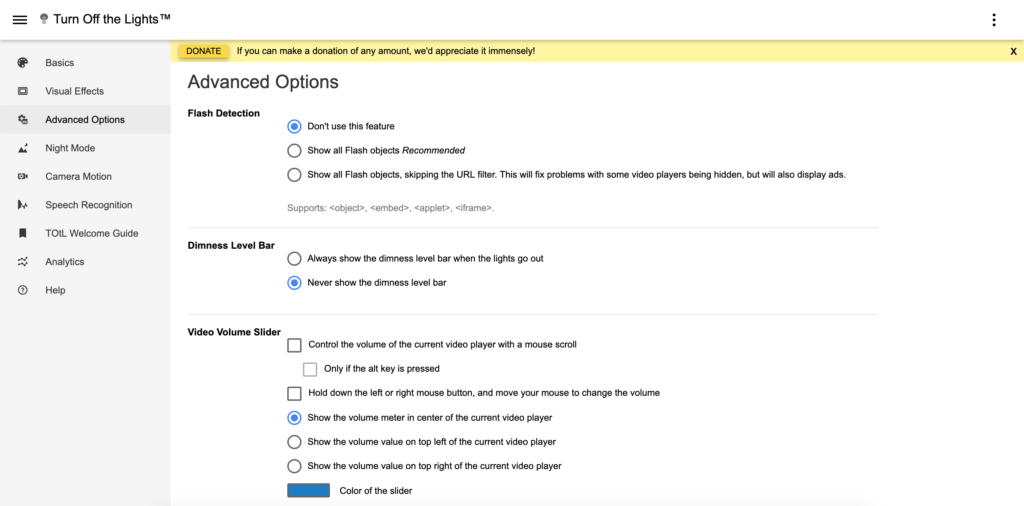
This feature is one of the key engines of the ‘video intelligent detection’ that makes it work on all video websites. That is with the embedded video player on other websites such as JW Player, and Silverlight.
How to enable the feature?
Default is this feature disabled in the Turn Off the Lights options page, but you can enable it by following the instructions below:
- Open your web browser
- Click right on the gray lamp icon
- Click on Options to open the Turn Off the Lights options page.
- Open the Advanced Options tab
- On the top of the web page, you see the subject Flash Detection
- There you click the second or third option
FAQ
What is the Turn Off the Lights browser extension?
What are the key features of the “Turn Off the Lights” extension?
What is the Flash Detection feature in the Turn Off the Lights extension?
How can I enable the Flash Detection feature?
What does the Flash Detection feature search for?
Did you find technical, factual or grammatical errors on the Turn Off the Lights website?
You can report a technical problem using the Turn Off the Lights online technical error feedback form.
